
In this section
Check and fix zones page by page
Compare each page's zones with the HTML preview and fix what the analysis got wrong: covers and ads, line breaks, columns, running heads, page breaks and TOC links.
After the analysis, every page of the title is divided into zones: headings, paragraphs, lists, figures and so on. Most pages come out right, but some need a correction before the ePUB reads well. The most reliable way to catch these is to go through the title one page at a time and compare each page with its HTML preview.
Review each page against the HTML preview
- Open the page and look at its zones on the PDF in the middle of the editor.
- Compare them with the HTML Preview on the right. The text should be complete, in the right order, and tagged as what it is: a heading as a heading, a list as a list, a picture as a figure.
- Fix anything that doesn't match, using the tasks below.
- Move to the next page with Next Page in the toolbar, or press ↓. ↑ goes back a page.
Capture a whole page as a figure
Some pages are best kept as a single image in the ePUB, such as the cover or a full-page advertisement.
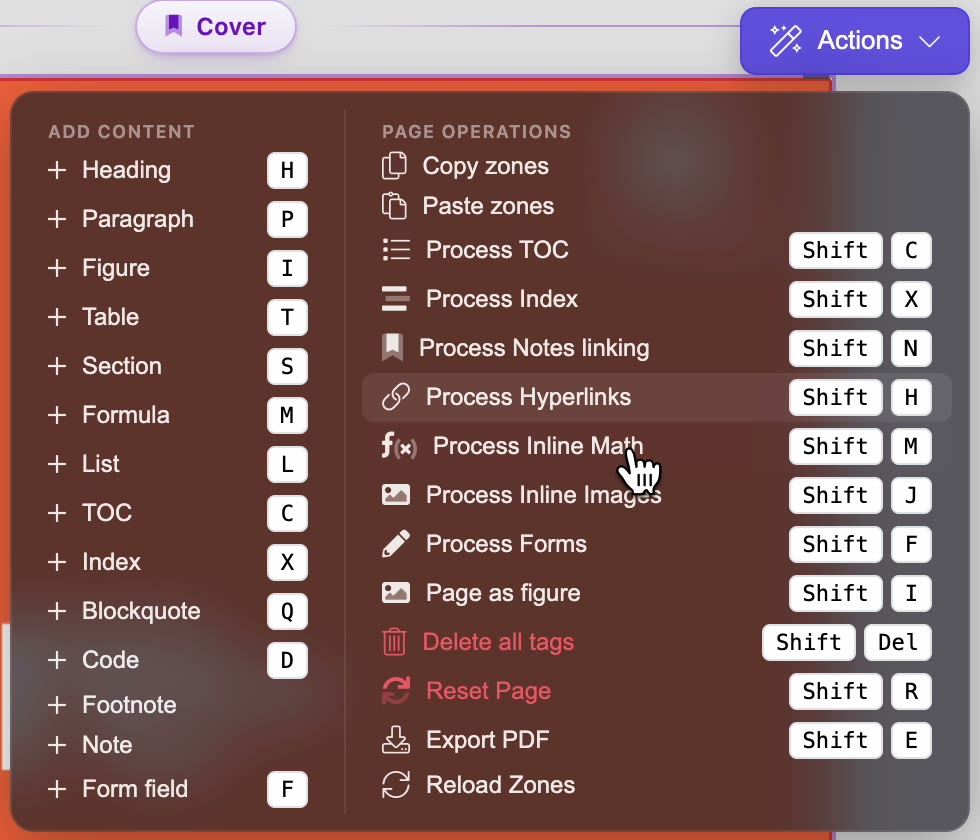
- Go to the page and open the Actions menu at the top right of the page.
- Under Page Operations, choose Page as figure, or press Shift + I.
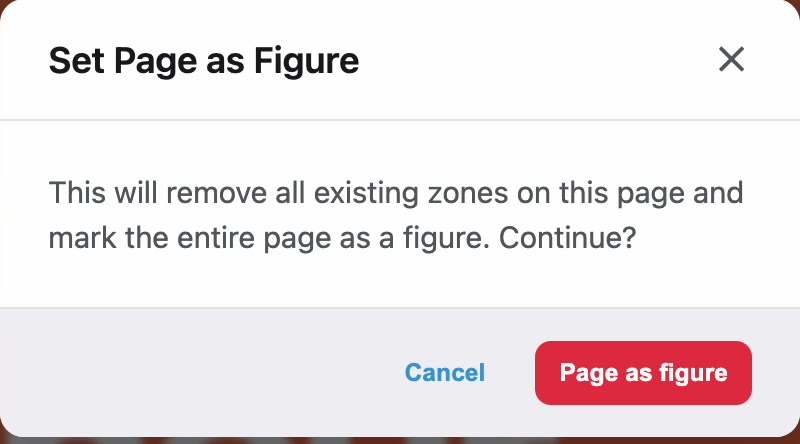
- PDFxt warns that this removes all the existing zones on the page and marks the entire page as a figure. Click Page as figure to confirm.
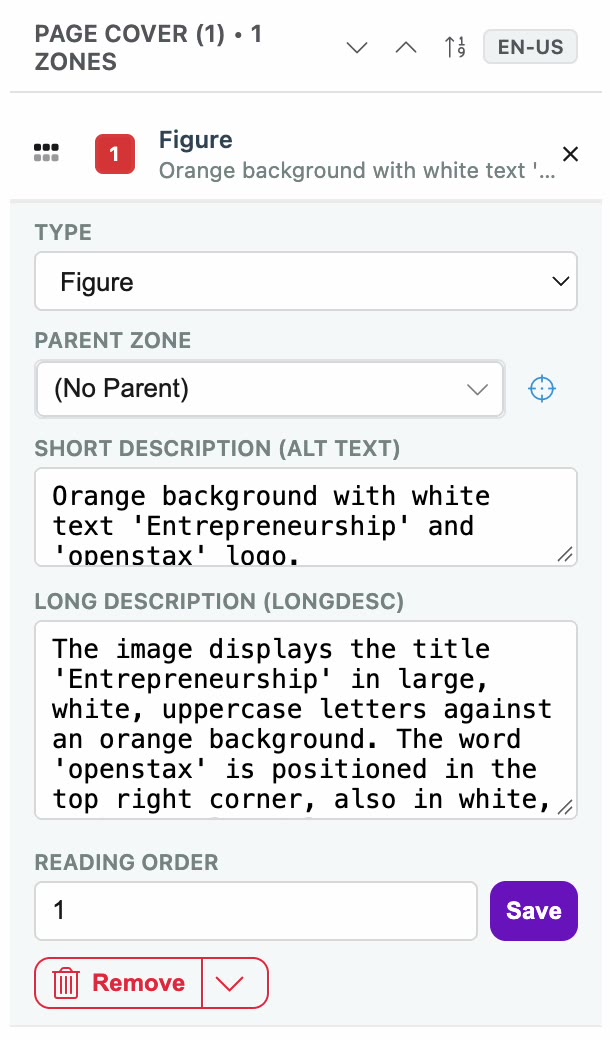
The page becomes one figure zone. Select it in the zone list to check the Short Description (Alt Text) and Long Description (Longdesc) that PDFxt filled in, and edit them if they need it.
Add line breaks inside a paragraph
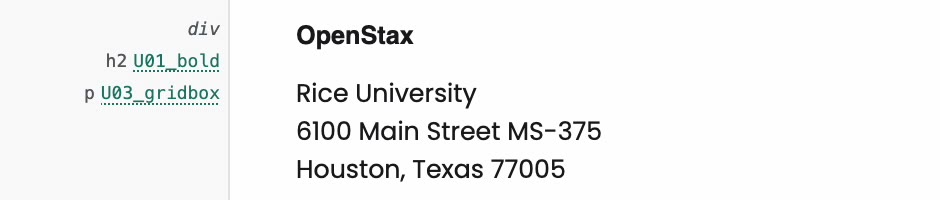
An address, a list of names or a key-value list can be detected as one paragraph, so the HTML runs the lines together.
- Select the paragraph zone.
- In the zone settings bar above the page, click Force <br>, or press Shift + B.
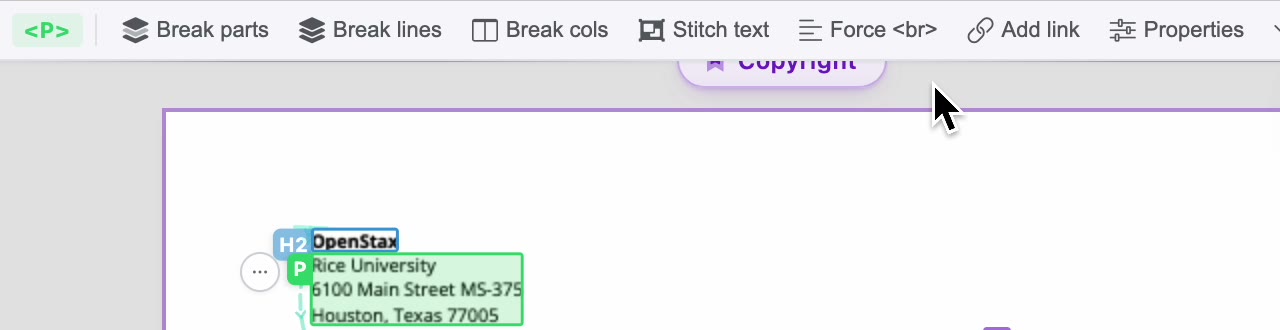
PDFxt adds line breaks inside the zone, and the HTML preview now shows each line on its own.
Fix content wrongly detected as two columns
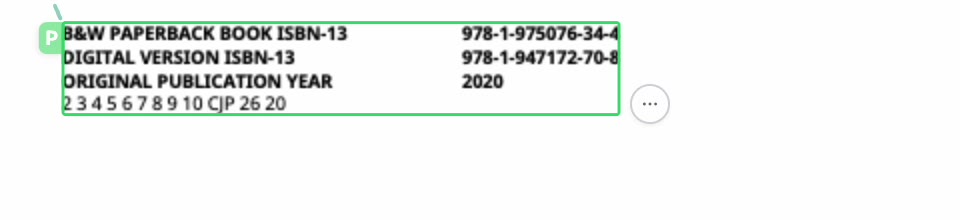
Content set side by side, such as a list of labels and values, can be detected as two separate columns. In the ePUB the two halves would then read one after the other.
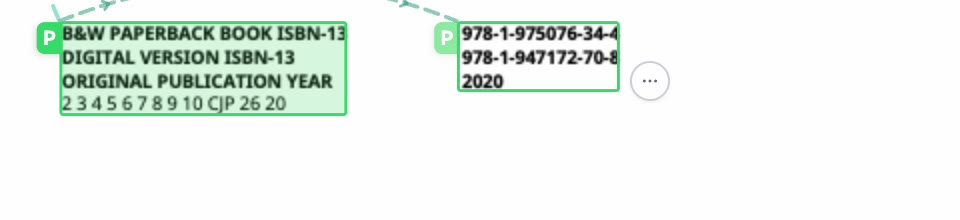
- Select the zone on the right and press Delete.
- Select the remaining zone and press Shift + S to resize it.
- Drag its edges so that it covers both columns. PDFxt saves the new size and reprocesses the zone's content.
- With the zone still selected, click Force <br> so that each row stays on its own line.
Delete zones you don't want
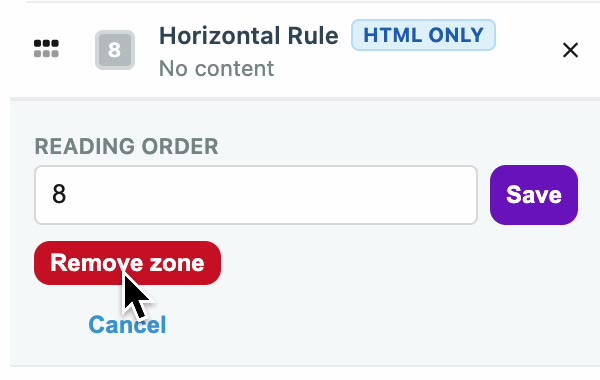
Remove zones that shouldn't be in the ePUB, such as a horizontal rule PDFxt detected as a separator, a running head or a running footer.
- Select the zone, on the page or in the zone list.
- Press Delete, or click Remove in the zone's details and then Remove zone.
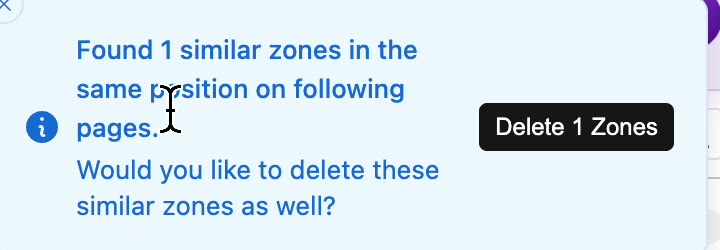
When you delete a zone, PDFxt checks the following pages for zones in the same position. If it finds any, such as the same running head mistagged on another page, it asks whether you'd like to delete those as well.
- To remove them too, click the button in the message, for example Delete 1 Zones.
Start a page on a new page in the ePUB
Use a page break when a page, such as an advertisement or the start of the contents, should begin on a new page in the ePUB rather than flow on from the page before.
- Hover over the gap above the page. Add chapter break and Page break appear.
- Click Page break. It changes to Page break on, and the HTML preview marks the place with PAGE BREAK.

To remove it, click Page break on again. Page breaks apply to the ePUB and HTML only.
Link the table of contents to the headings
PDFxt detects and tags a printed table of contents automatically. The links it creates can point to the destination page as a whole. To make each entry go to the heading itself, process the contents pages again.
- Go to the first page of the contents.
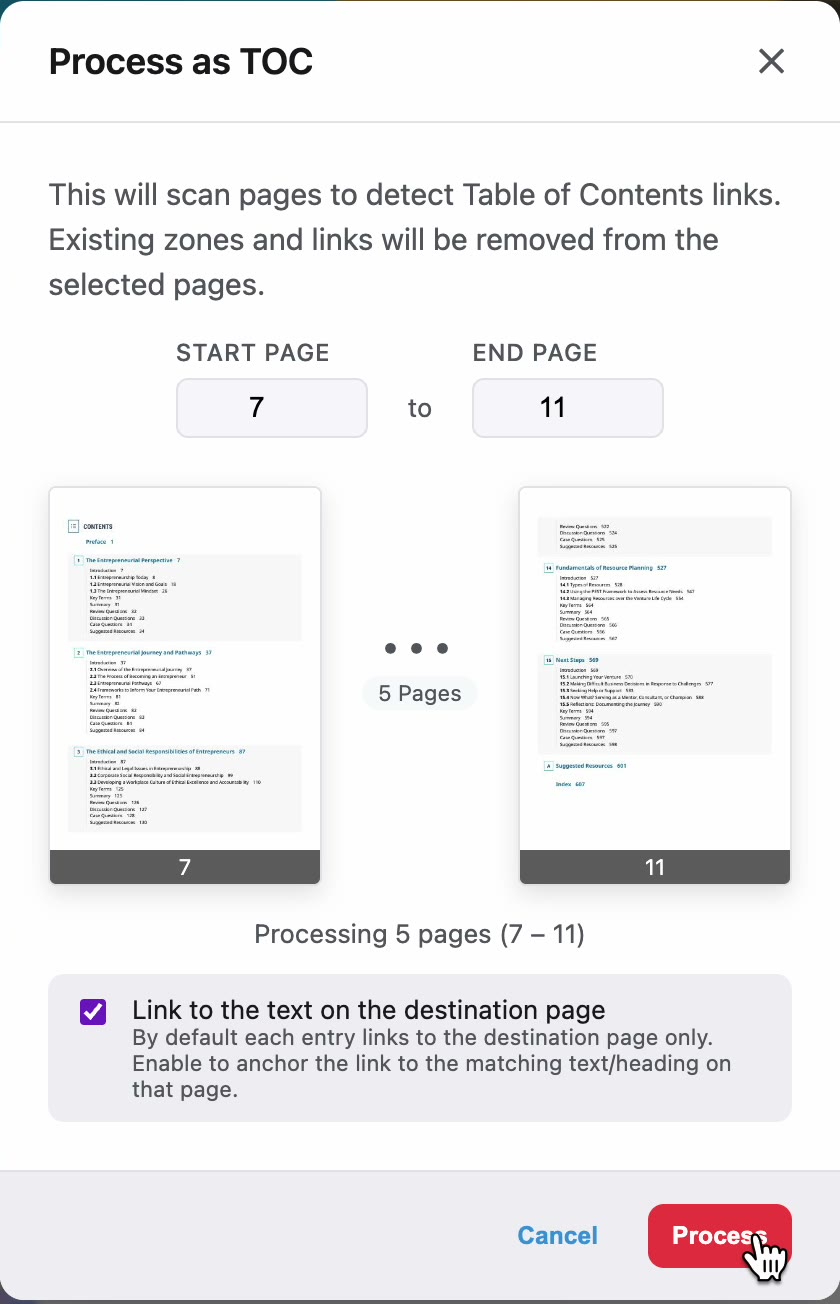
- Open Actions and choose Process TOC, or press Shift + C.
- Set the End Page so that the range includes every contents page.
- Make sure Link to the text on the destination page is ticked.
- Click Process. The existing zones and links on those pages are removed and rebuilt.
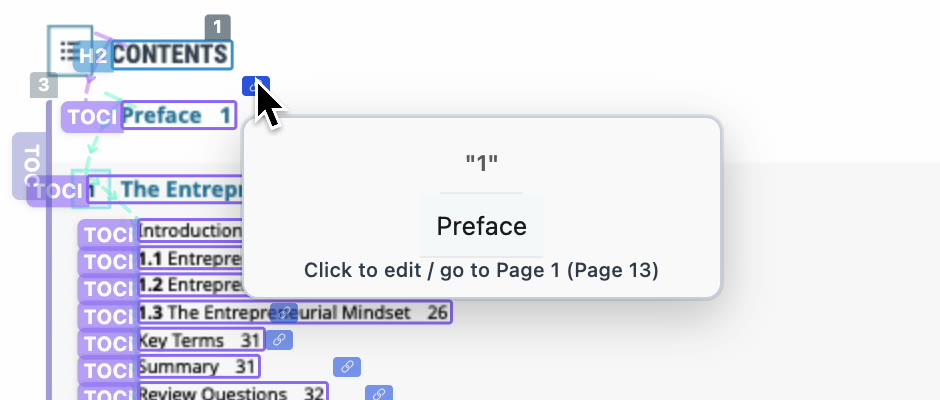
- When processing finishes, hover over an entry's link icon. The preview now shows the matching text on the destination page, not the whole page.
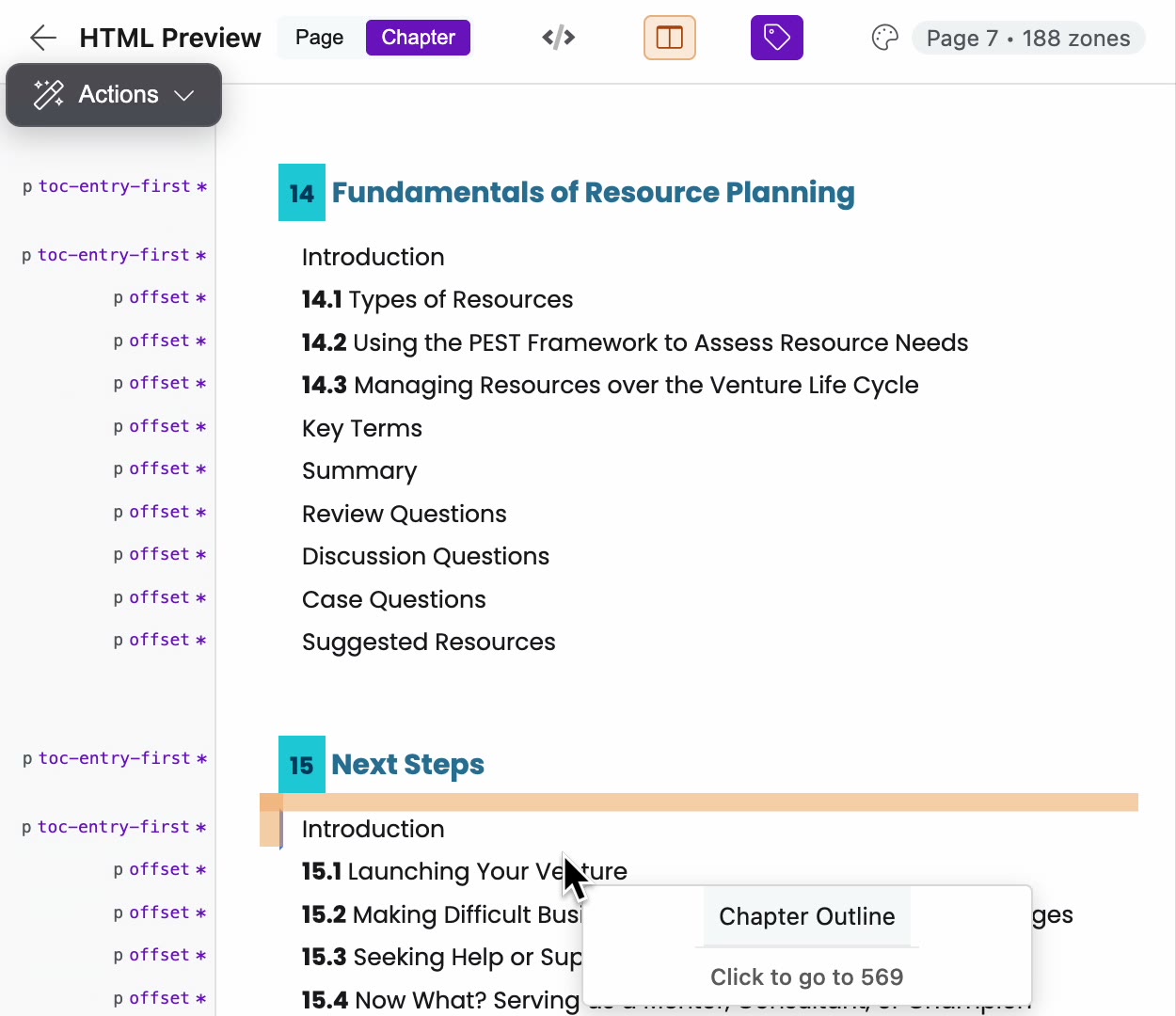
- To check the links in context, click Chapter at the top of the HTML Preview. Hover over an entry to see where it goes, and click it to jump there.
Remove an incorrect continuation
PDFxt marks a paragraph that runs on to the next page with an orange arrow at its end. If the paragraph actually ends on this page, remove the link.
- Click the orange arrow at the end of the zone. The Stitch text panel opens.
- Under Continues to (later), click Unlink.
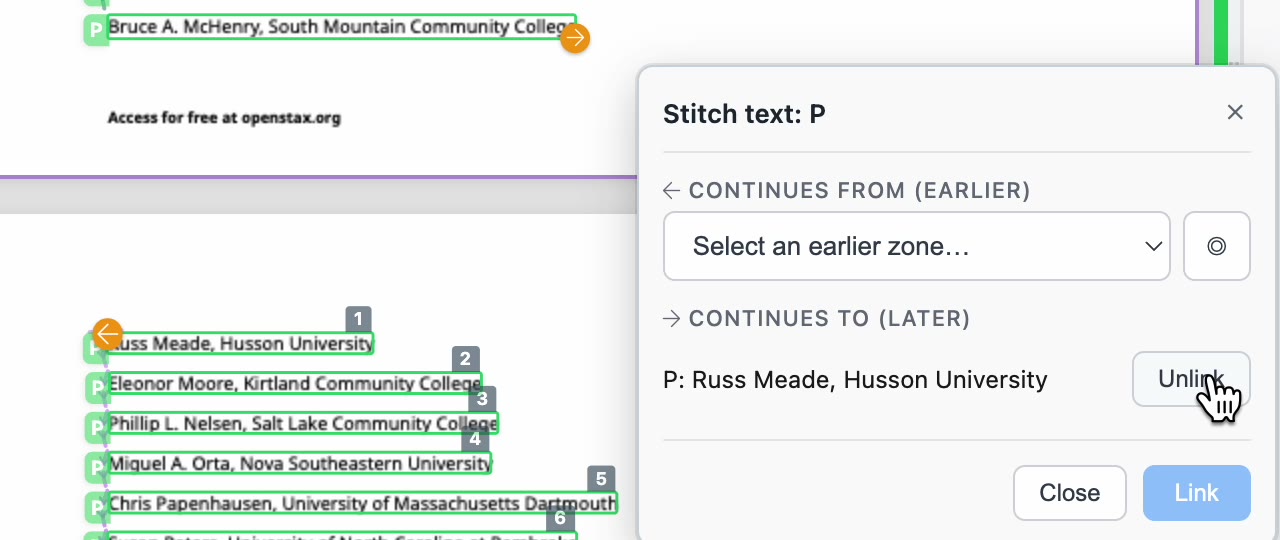
PDFxt confirms with Zones unlinked.
Check it worked
Go back through the pages you changed and compare each one with the HTML Preview:
- Covers and advertisement pages show as a single image with a description.
- Addresses and lists show one item per line.
- Running heads, running footers and stray rules are gone.
- In the Chapter view, each contents entry goes to its heading.
Related articles
- Find your way around the editor
- Fix page numbers
- Build the table of contents and chapters
- Edit styles and HTML for a zone
Watch the video
Zoning, part 7 of the PDFxt video series.