
In this section
Fix page numbers
Check each page's label against the printed page number and correct it, one page at a time or a whole range at once, before you make any other change.
Before you make any other change to a title, check that its page numbers are right. Links, notes and index entries all point to pages by their number, so a wrong page number leads to a wrong link, note or index entry. Fix the page numbers first, then move on to the rest of the structure.
Page labels and physical page numbers
Every page has two numbers:
- The page label is the number printed on the page, such as Cover, iv or 271.
- The physical page number is the page's position in the PDF, counting from 1.
On the Pages tab of the left sidebar, each thumbnail shows its page label, with the physical page number in brackets. 274 (286), for example, is the page printed as 274, which is the 286th page of the PDF.
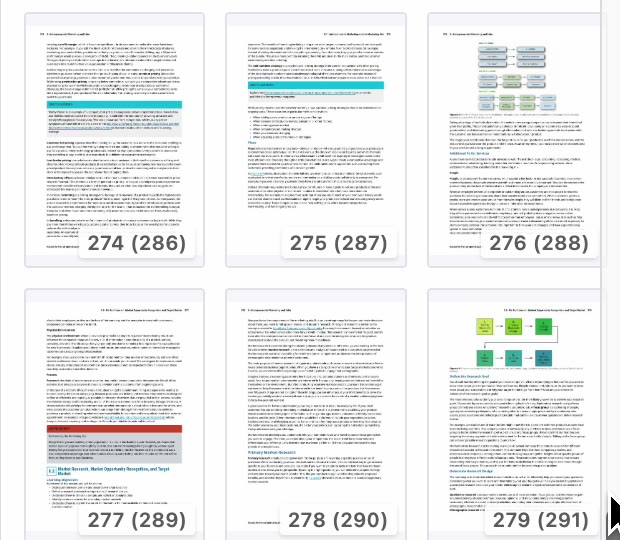
Go through the thumbnails and compare each label with the number printed on the page. A label that's also used on another page is highlighted in red.
Change the label of one page
- Hover over the thumbnail and click the pencil, Edit page numbering.

- The Page Labels dialog opens, with the page selected under Apply to.
- Type the label in Label for page, for example Cover.
- Click Apply Labels.
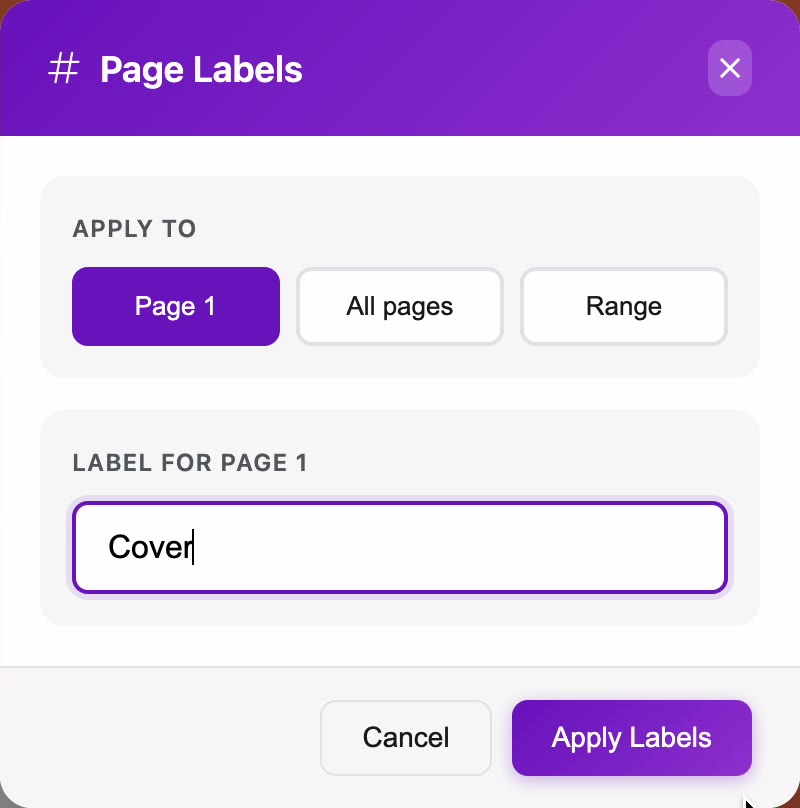
Label a range of pages
Use a range when several pages follow one numbering scheme. Front matter, for example, is usually numbered in lowercase Roman numerals.
- Click the pencil on the first page of the range.
- Under Apply to, choose Range.
- Set From and To to the first and last physical page numbers of the range, for example 2 to 12.
- Under Numbering style, choose the style. Roman gives lowercase Roman numerals (i, ii, iii). The other styles are Numbers, Roman Caps, Letters and Letter Caps.
- If the range doesn't start at 1, set Start at. To put text before every label, type it in Prefix.
- Check the Preview row, then click Apply Labels.
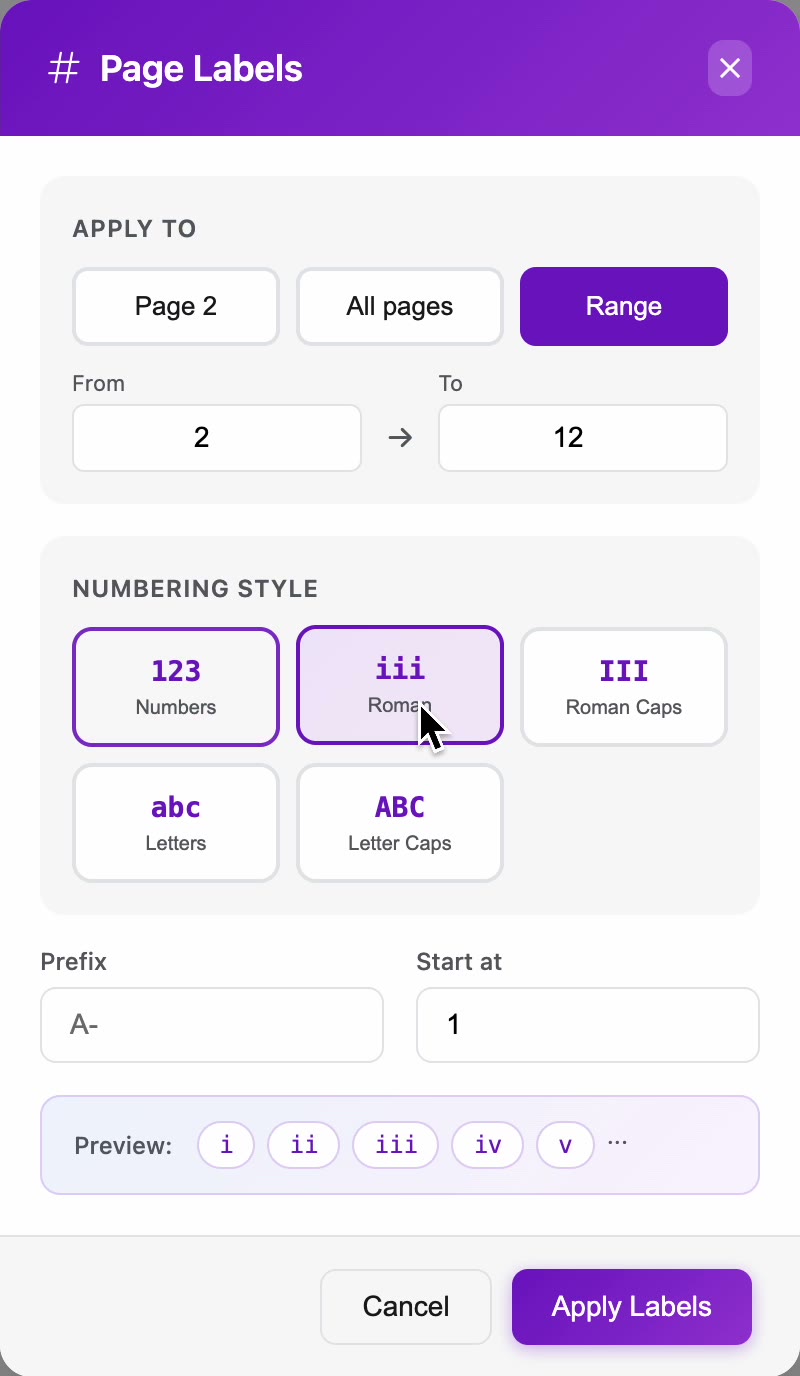
To number the whole title in one scheme, choose All pages instead of Range.
Check it worked
The thumbnails show the new labels. In the example, the cover reads Cover (1), the front matter runs from i (2) to xi (12), and the main text starts at 1 (13). No label is highlighted in red.

Related articles
- Find your way around the editor
- Check and fix zones page by page
- Fix footnotes and note links
- Process an index
Watch the video
Fixing page numbers, part 5 of the PDFxt video series.