
In this section
Fix footnotes and note links
Check that each note cue links to its note, draw any note PDFxt missed, and rebuild the two-way links between cues and notes with Process Notes linking.
PDFxt detects footnotes, chapter-end notes and book-end notes during the analysis, tags them, and links each note cue (the superscript number in the text) to its note. In the ePUB, readers can then jump from a cue to its note and back again. Check the links on pages with notes, and if a note or a link is missing or wrong, draw the note and rebuild the links.
Check a cue's link
- Go to a page with notes. Note zones are labelled FN.
- Find the zone that contains the cue. A zone with links has a link badge at its top-right corner. Click it to see the zone's outbound links, each with its cue and the page it points to.
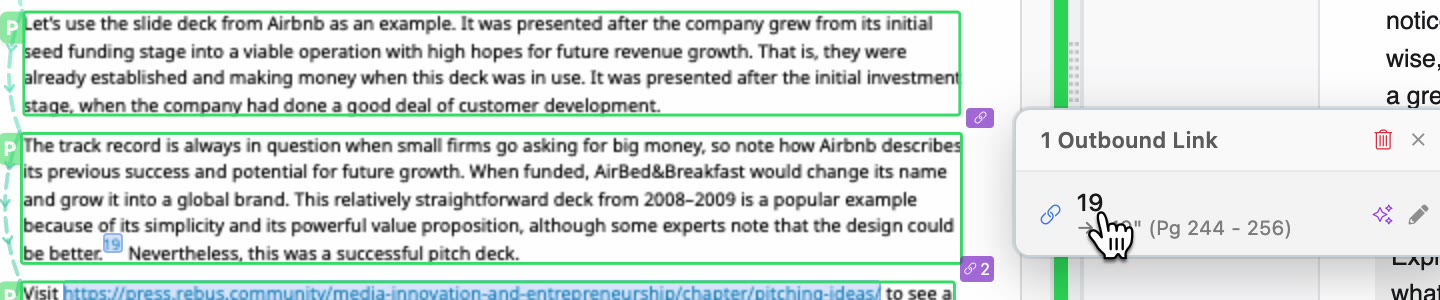
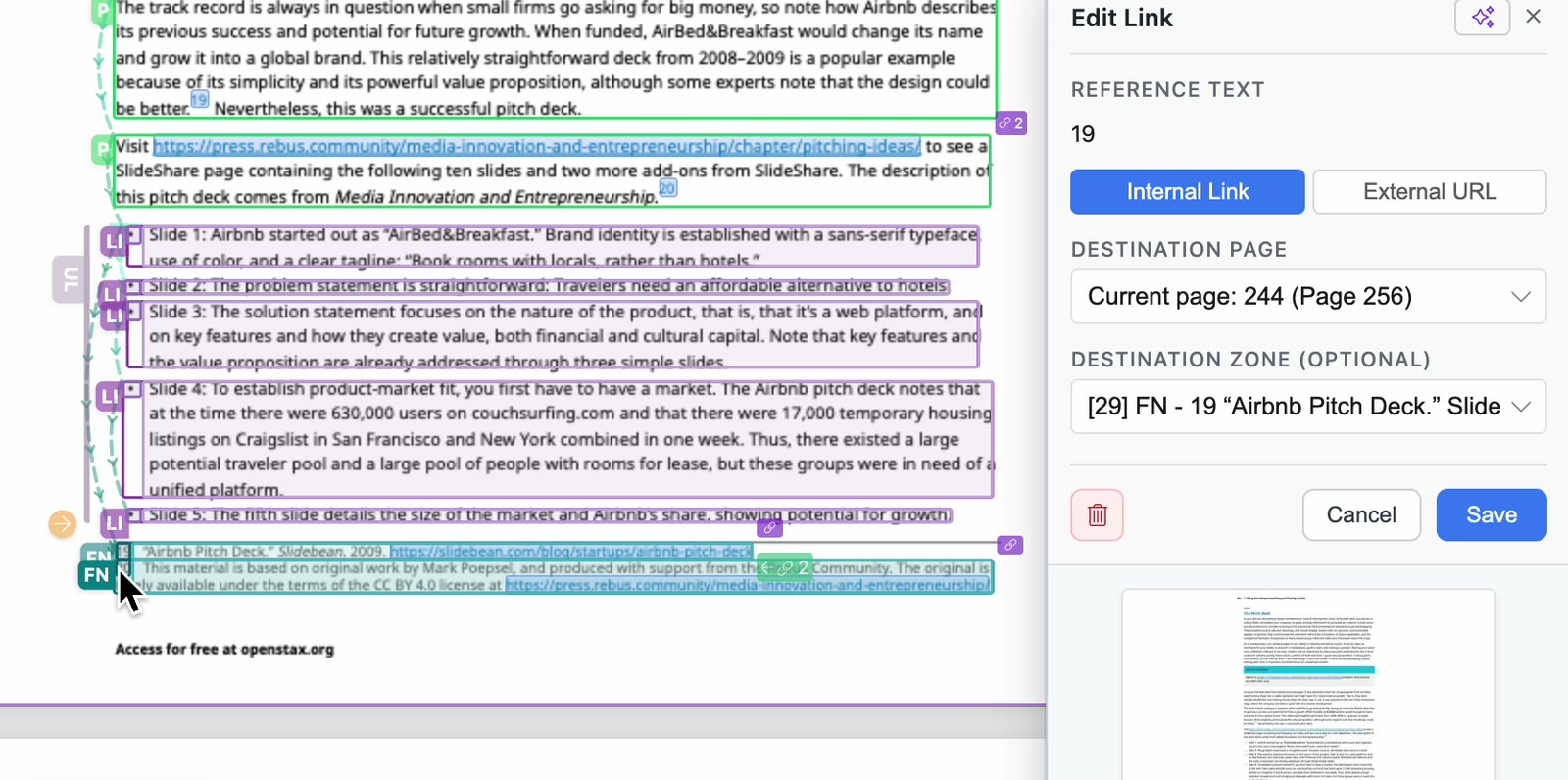
- Click the cue in the list to open Edit Link. Destination zone shows the note the cue points to.
Draw a missing note
If PDFxt didn't detect a note, draw it as a zone.
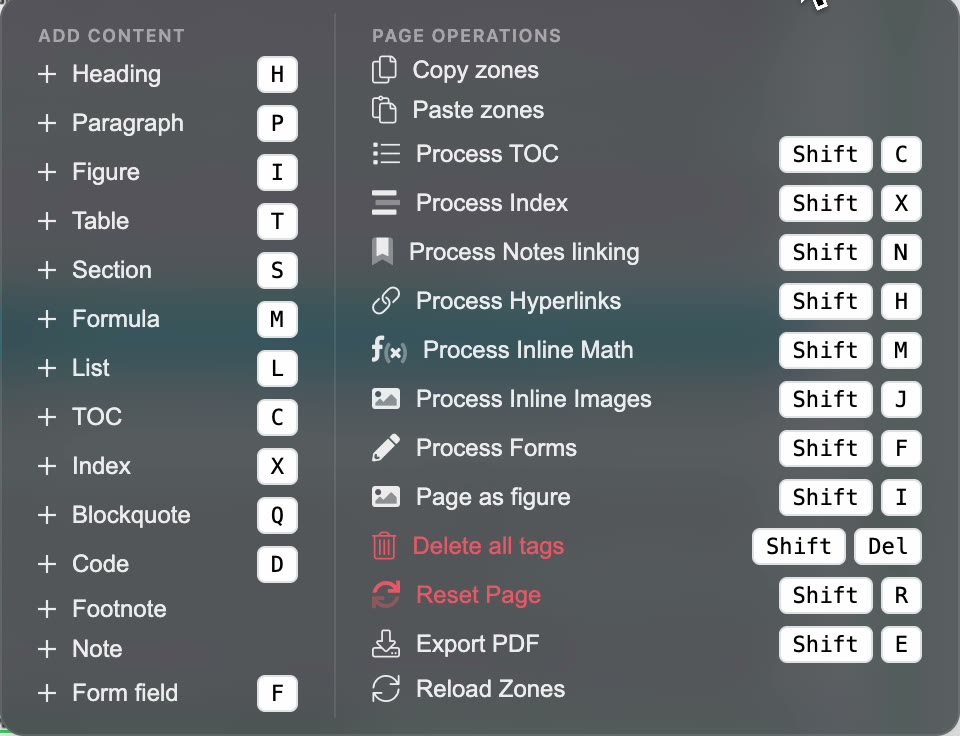
- Open Actions and choose Footnote under Add Content.
- Hold the left mouse button and drag over the note. Stay within a single column.
- The new zone is labelled FN on the page and appears in the zone list as Footnote. To stop drawing, click Cancel Draw.
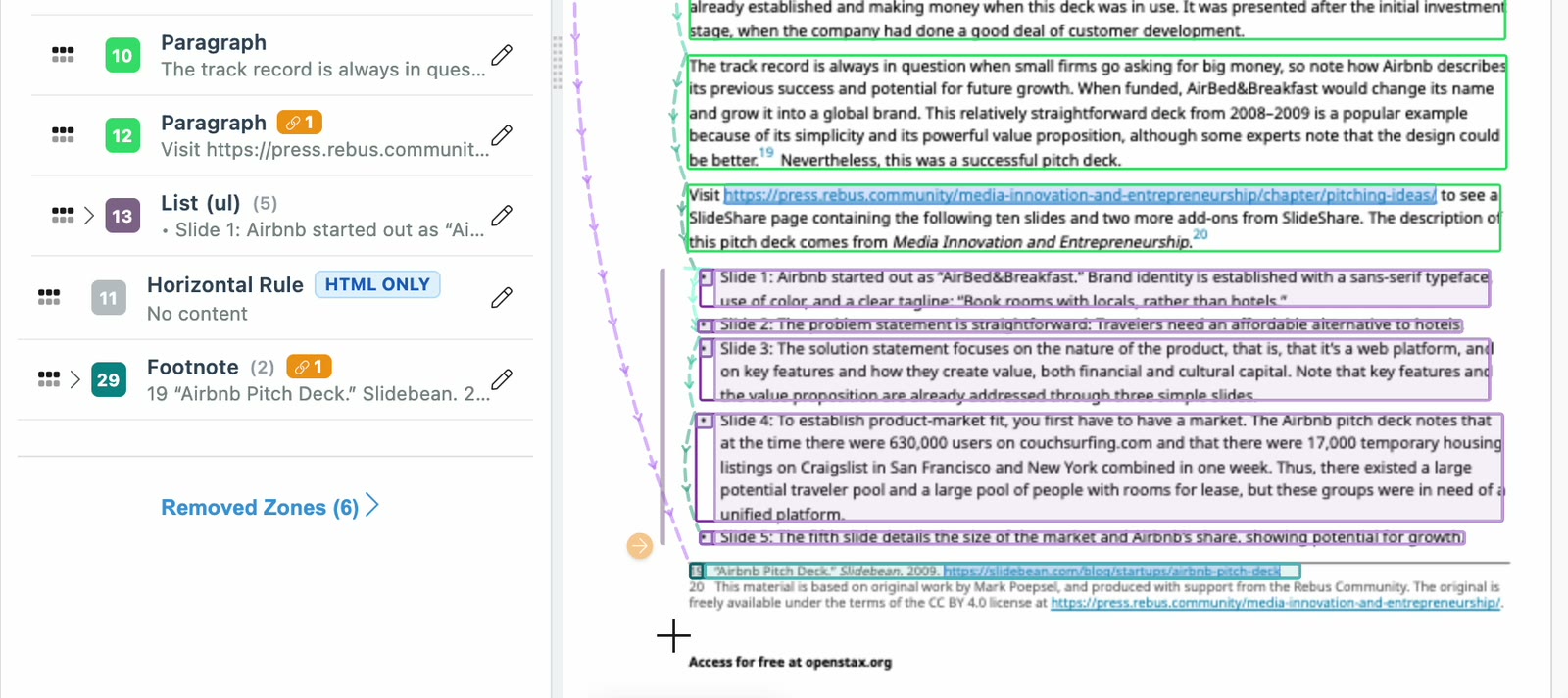
- Repeat for every missing note on the page.
Rebuild the links with Process Notes linking
Once every note has a zone, let PDFxt link the cues to their notes.
- Open Actions and choose Process Notes linking, or press Shift + N.
- Set the Start Page and End Page. They start at the page you're on.
- By default, only cues with no link or a broken link are processed. To re-link cues that are already linked, for example when a cue points at the wrong note, check Reprocess all notes.
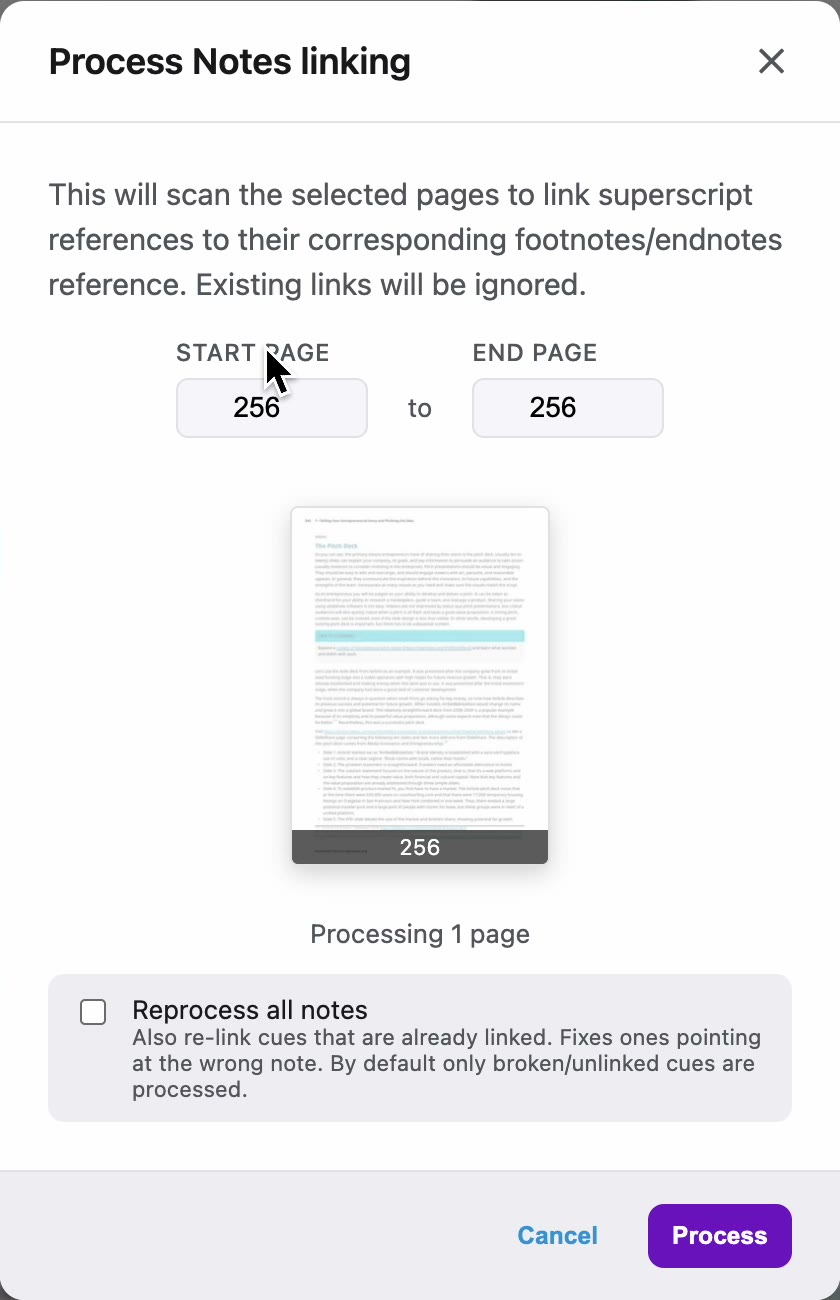
- Click Process. While the page is processing, edits are disabled.
PDFxt links each cue to its note, and each note back to its cue.
Check it worked
- Each linked note zone shows a green badge with an arrow, counting the cues that link to it. Click it to see where the note is referenced from.
- Click the link badge on a zone with cues. The outbound links list each cue and the page it points to.

If something goes wrong
- A cue points at the wrong note. Open its link from the link badge, choose the right note in Destination zone and click Save. Or run Process Notes linking again with Reprocess all notes checked.
Related articles
Watch the video
Footnotes, part 11 of the PDFxt video series.