
In this section
Process an index
Tag a whole index in one step. PDFxt creates the index entries and links every page number to its page, then you check each index page and fix any zoning problems.
Tagging an index by hand means marking every entry and linking every page number in it. Process Index does this for the whole index in one step: PDFxt creates the index entries and links each page number to the page it refers to. Your job is to check the result page by page and fix anything that was zoned wrongly.
Before you start
Fix page numbers first. The index links point to pages by their page numbers, so those need to be right.
Process the index
- Go to the first page of the index.
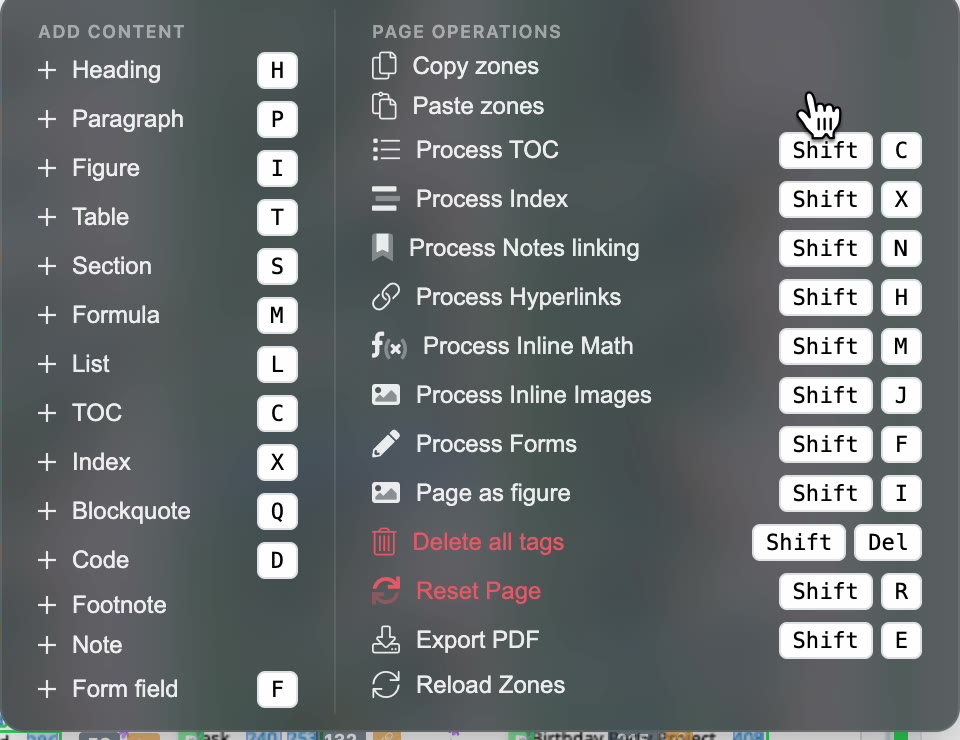
- Open the Actions menu and choose Process Index, or press Shift + X.
- In Process as Index, set Start Page and End Page to cover the whole index. The range uses the PDF page numbers, the ones shown in brackets under each thumbnail.
- Click Process. Any zones already on those pages are replaced.
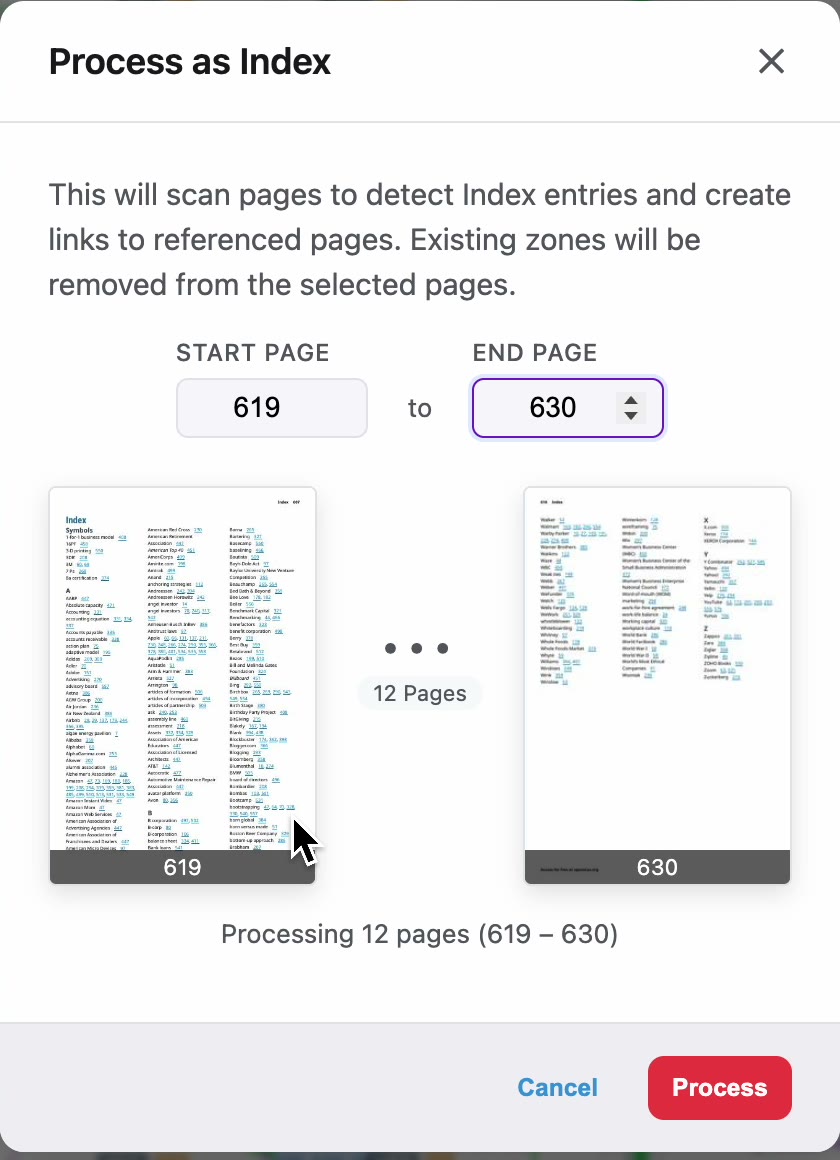
PDFxt confirms that index processing has started for the pages you chose. How entries are structured follows the Index entry structure setting. See Choose settings and save PDF presets.
Check each index page
Go through the index page by page. Each entry is tagged as a paragraph with the index-entry style, and its page numbers are links to the pages they refer to. In the HTML Preview, the page numbers show as links.
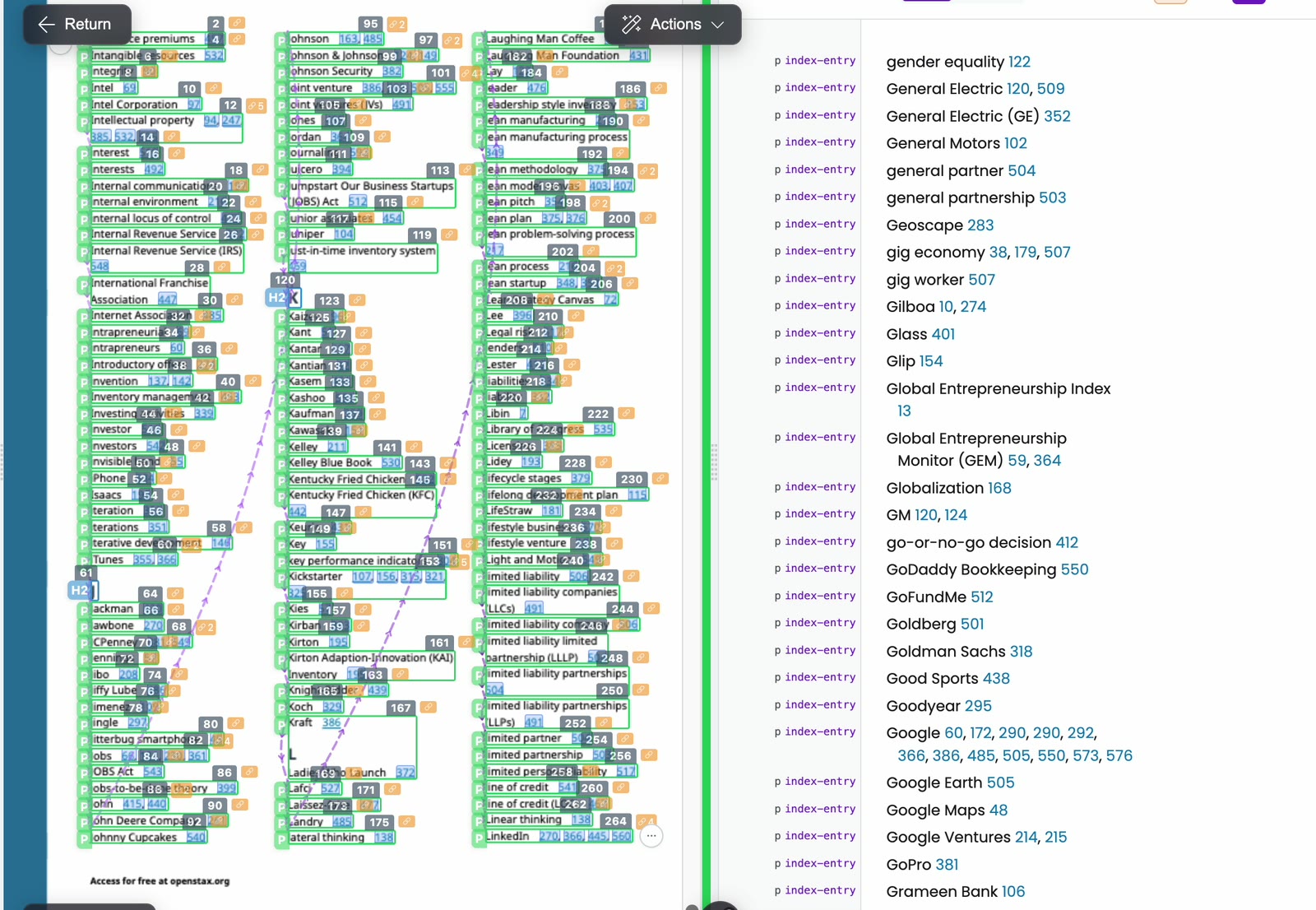
Fix a zoning problem
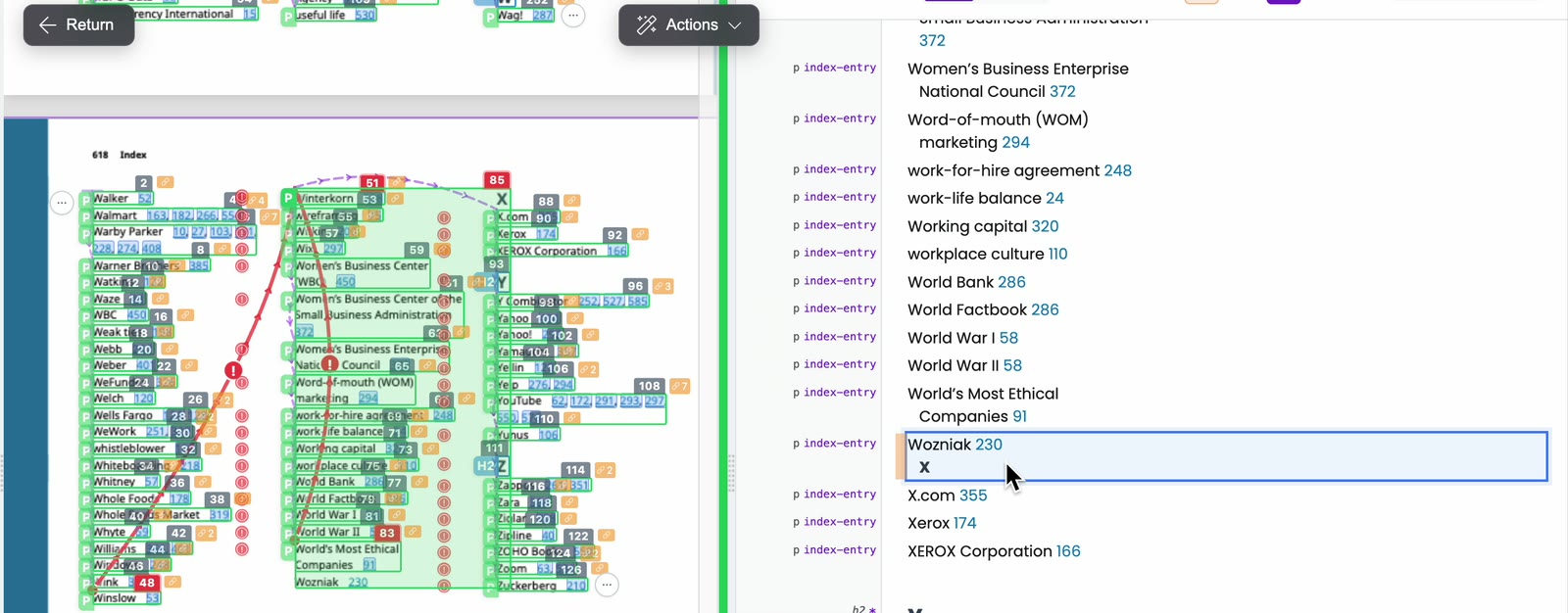
When zones on an index page are in the wrong order, PDFxt flags it on the reading-order line: the line turns red, with a ! marker where the order jumps.
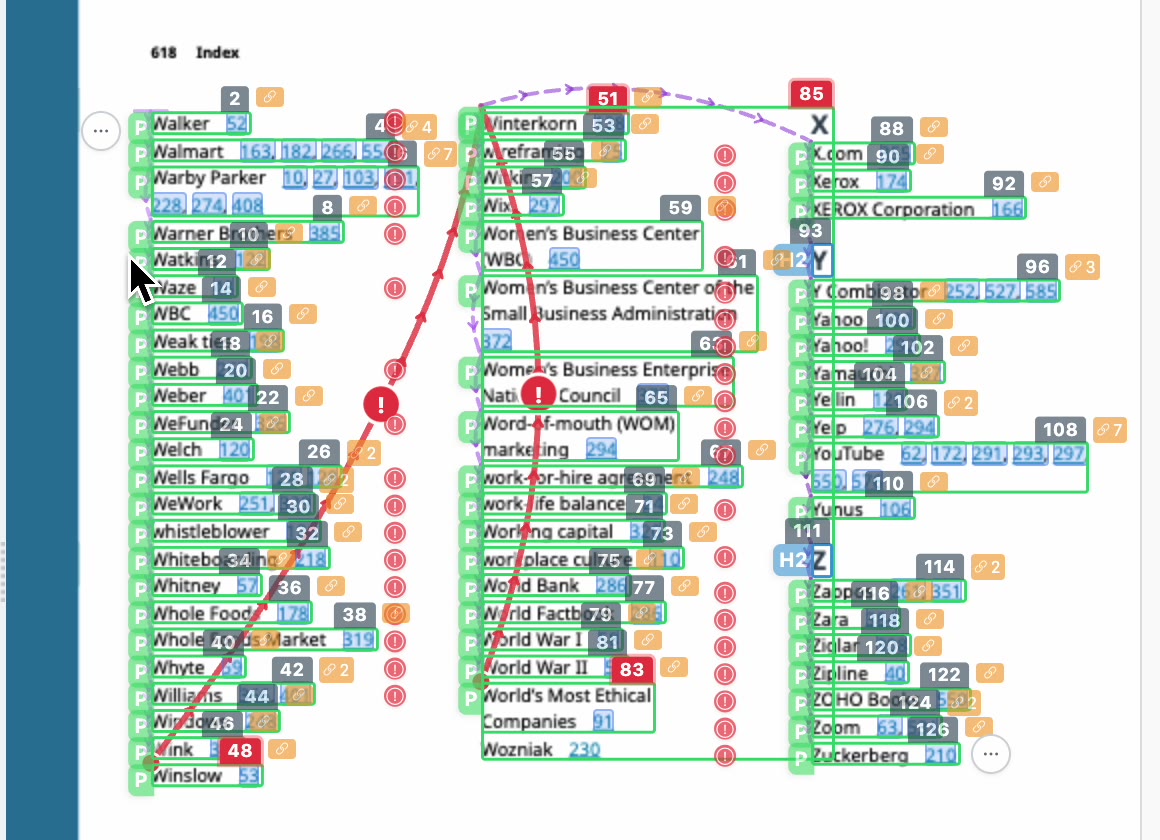
A common cause is an entry merged with the letter heading that follows it. Here, the last entry in a column and the heading X were zoned as one paragraph.
- Select the merged zone and press Delete, or click Remove in the zone panel.
- Open the Actions menu and choose Paragraph, or press P. Drag a box around the entry on its own.
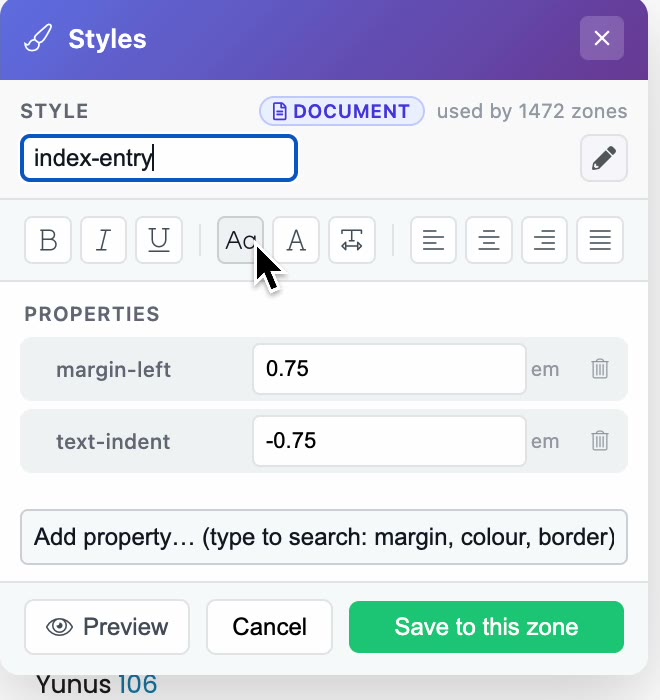
- Give the new zone the index entry style. In the HTML Preview, click the tag label beside the entry to open Styles, type in Style and choose index-entry, then click Save to this zone.
- Choose Heading from the Actions menu, or press H, and drag a box around the letter.
Check it worked
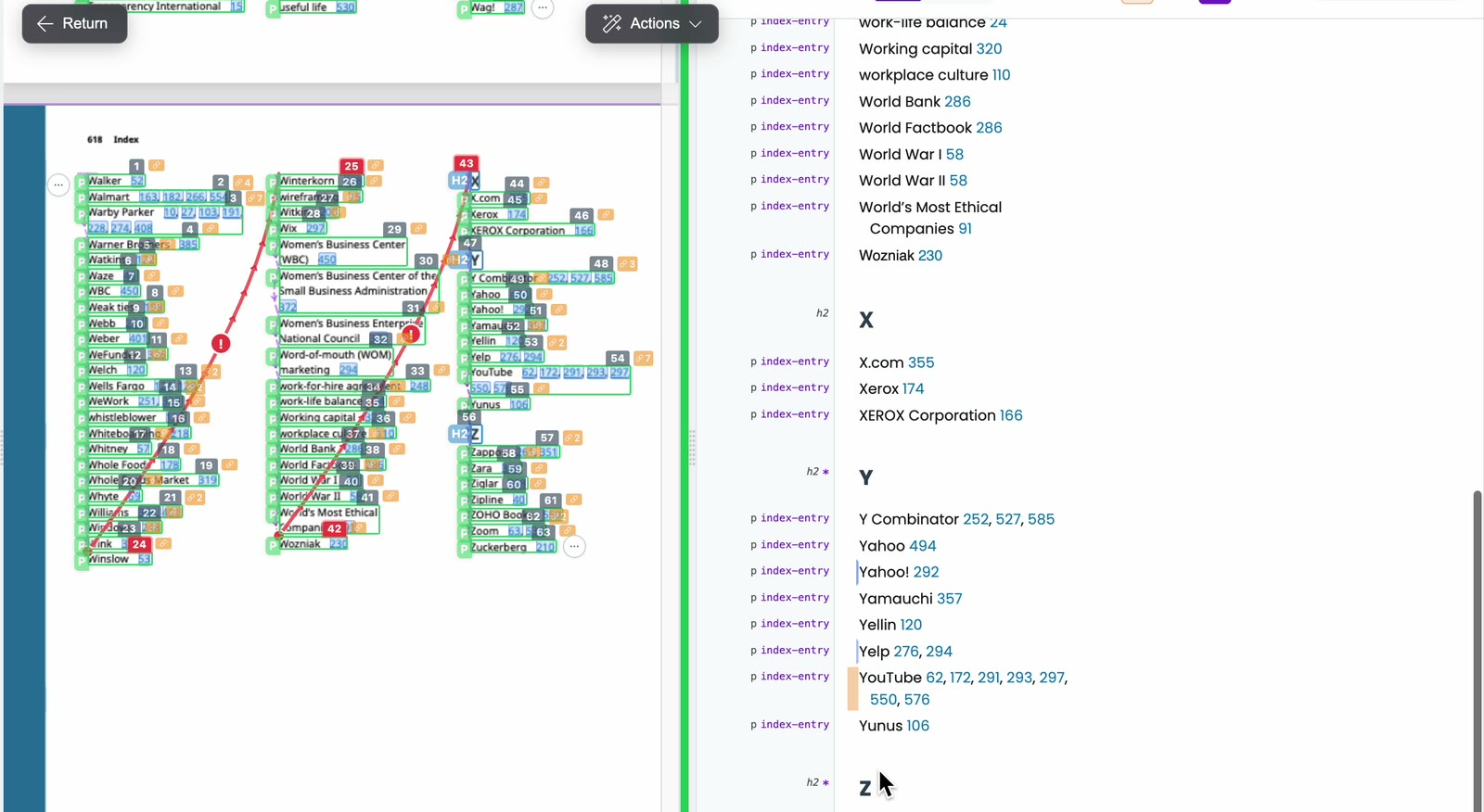
- Every index page has its entries tagged with index-entry, and their page numbers are links.
- In the HTML Preview, the fixed entry sits with the other entries in the same style, and the letter shows as a heading like the other letters.
Related articles
Watch the video
Index, part 12 of the PDFxt video series.