
In this section
Find your way around the editor
A tour of the PDFxt editor: page thumbnails, table of contents, chapters and zones on the left, the PDF in the middle and the live HTML preview on the right.
When the analysis finishes, open the title from the Documents page to work on it in the editor. Everything you check and correct before export happens here, so it helps to know where each part of the editor is before you start.
The three-column layout
The editor has three columns:
- Left: page thumbnails, the table of contents, the chapter split, and the zones on the current page.
- Middle: the PDF, with each zone PDFxt found drawn on the page.
- Right: the HTML Preview, the HTML that goes into the ePUB.
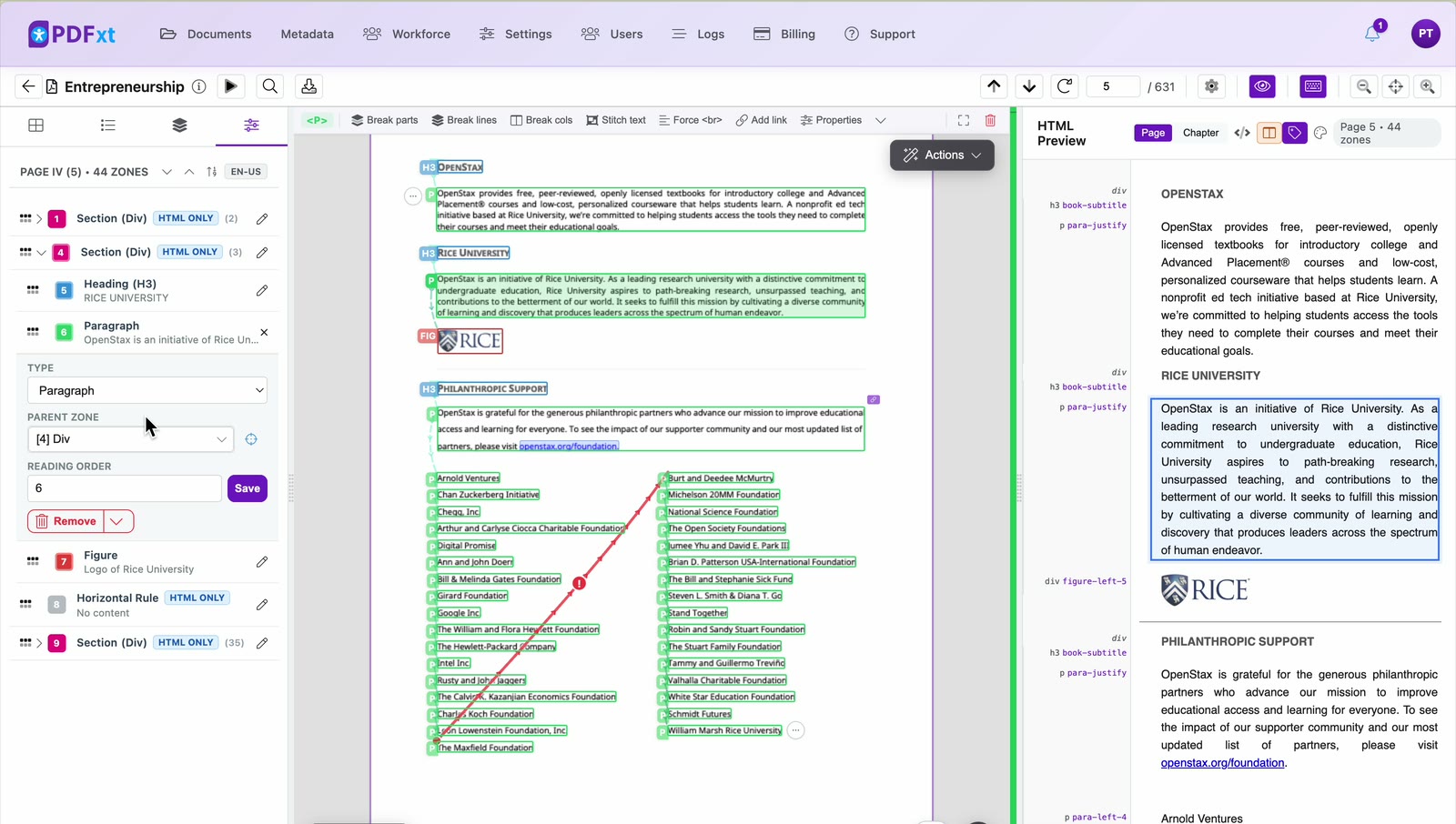
Scroll the PDF and the HTML Preview scrolls with it, so the two always show the same content. To go to another page, use the up and down arrows at the top right, or type a page number in the box beside them.
The left sidebar
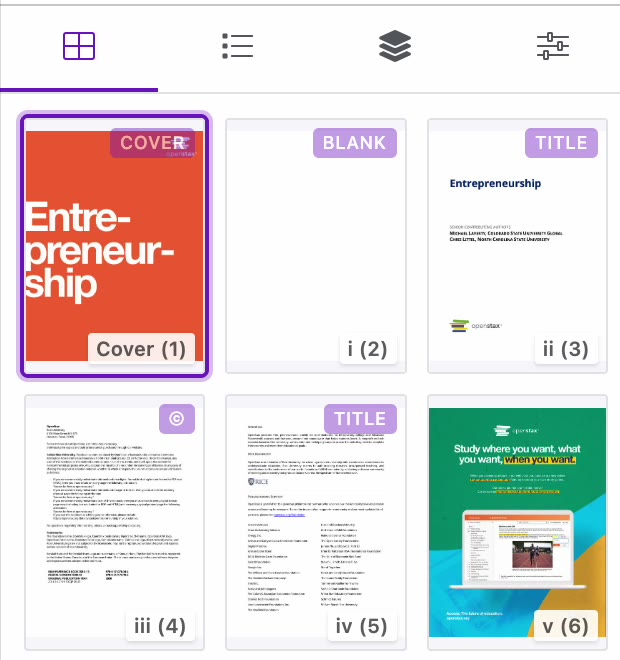
Four tabs at the top of the left sidebar switch what it shows:
- Pages: a thumbnail of every page, with its page label and, in brackets, its physical page number. Click a thumbnail to go to that page.
- Table of Contents: the table of contents of the title, with the page each entry points to.
- Chapters: how the title is split into chapters for the ePUB, with the page range of each.
- Zone properties: the zones on the current page, in reading order.
The zone sidebar
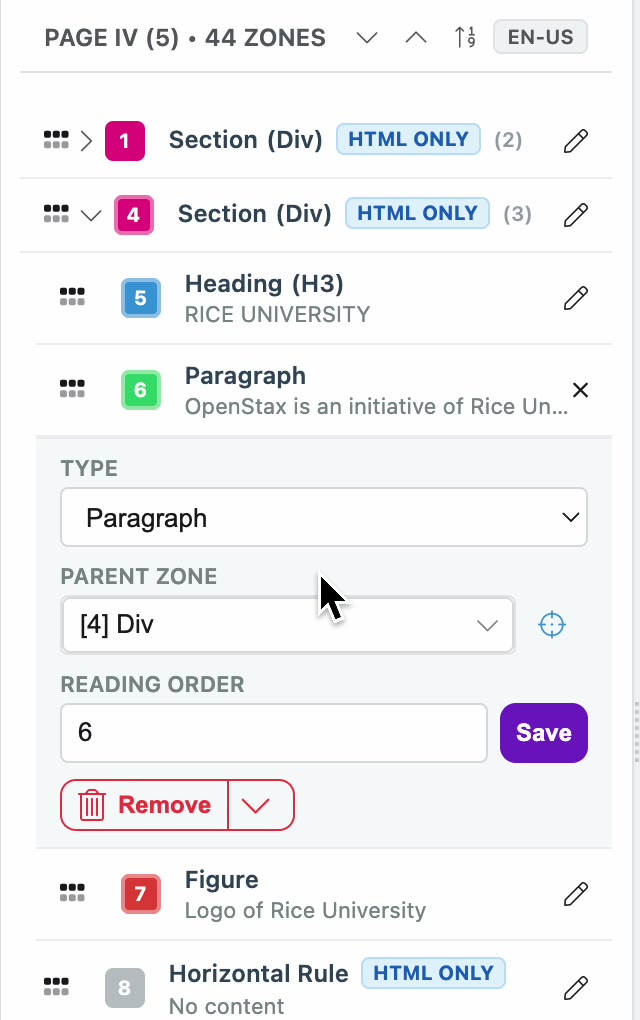
Select a zone to see its details in the zone sidebar, the Zone properties tab. The zone opens in the list with its Type, its Parent zone and its Reading order. To change the reading order, type the new position and click Save. To take the zone out, click Remove.
The nav bar
The bar above the PDF shows options for the selected zone. They change with the zone's type. For a paragraph, for example, they include Break lines, Stitch text, Add link and Properties.

The Actions menu
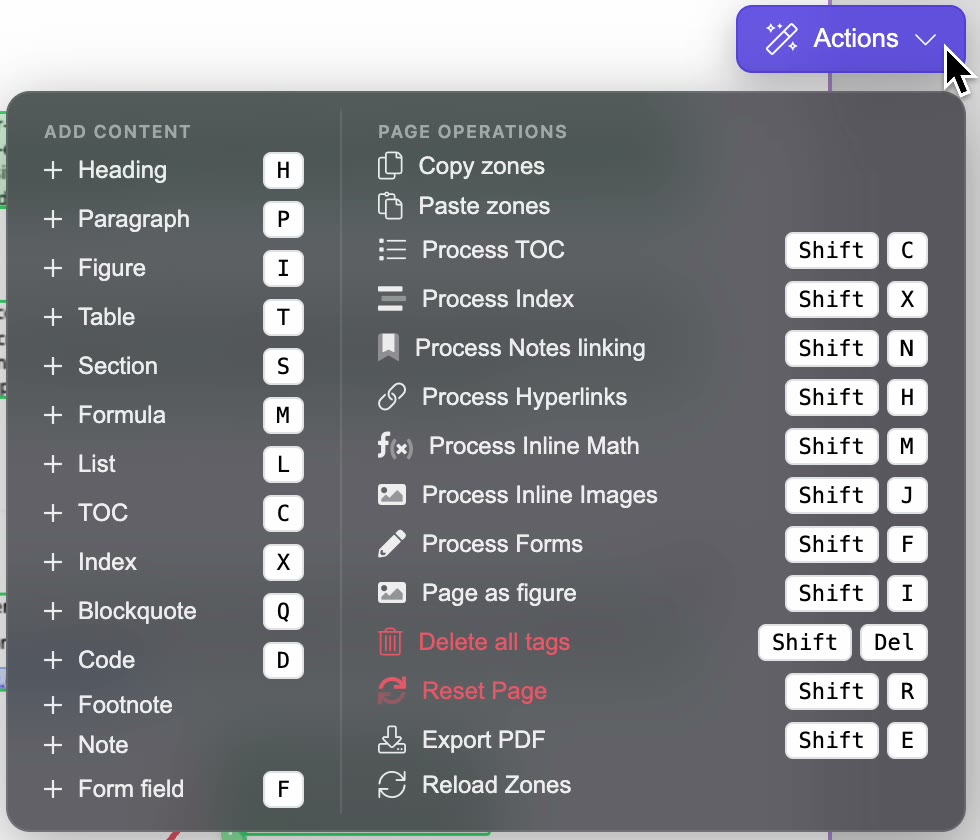
The Actions floating menu, at the top right of the PDF, holds options that apply to the whole page:
- Add content: add a heading, paragraph, figure, table or another type of zone.
- Page operations: for example Copy zones, Paste zones, Process TOC, Process Index and Page as figure.
Most items show their keyboard shortcut beside them.
The Layers menu
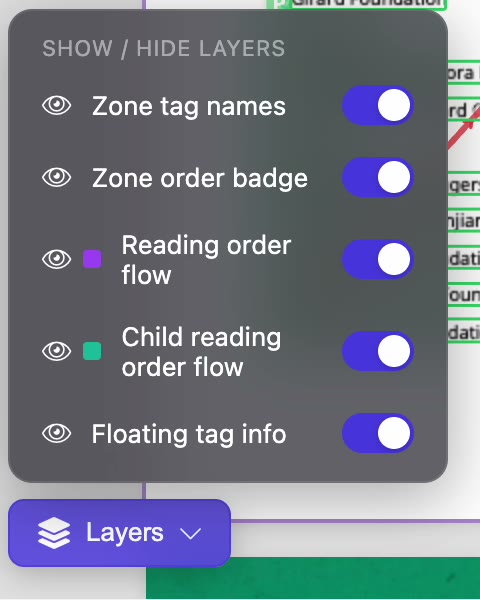
The Layers menu, at the bottom left of the PDF, turns on-page information on and off. Use it when the PDF gets crowded:
- Zone tag names
- Zone order badge
- Reading order flow
- Child reading order flow
- Floating tag info
Style toggles above the HTML Preview
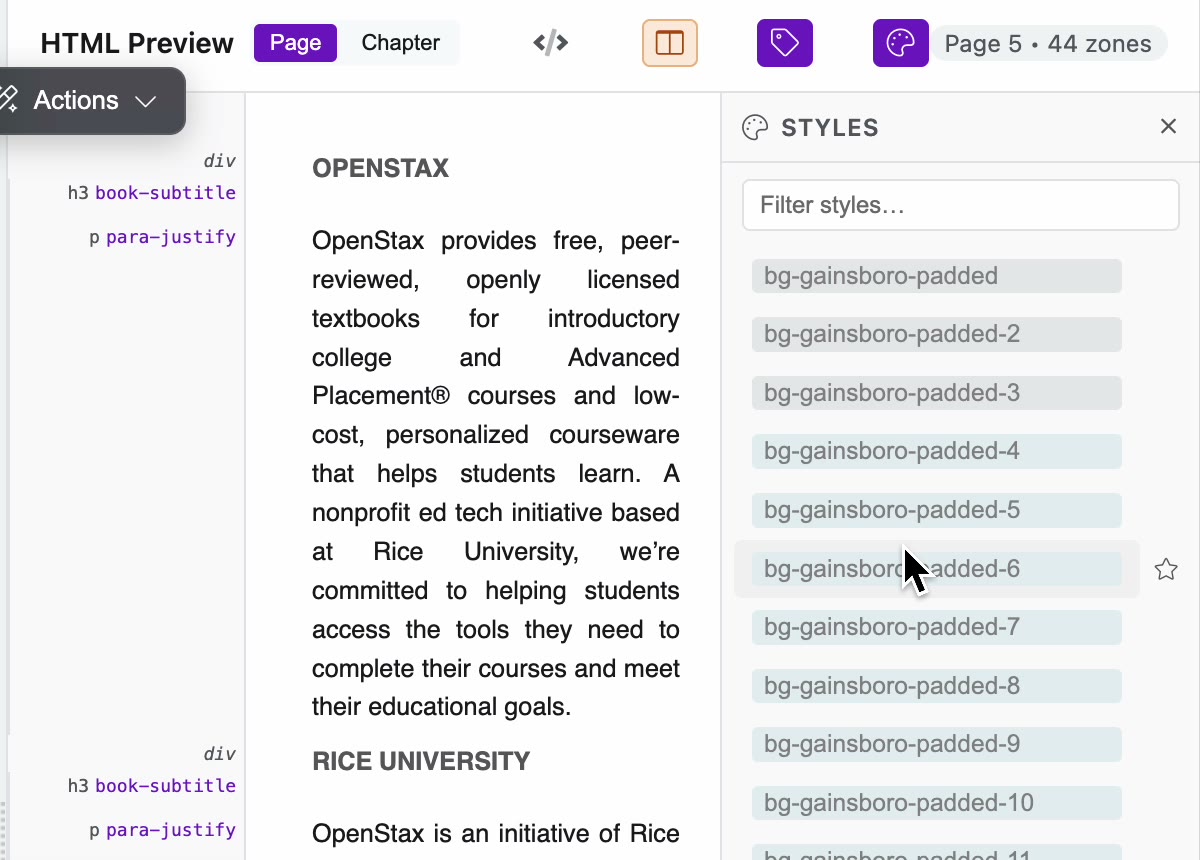
Two buttons above the HTML Preview control how styles are shown:
- The tag button shows each zone's style name beside it in the preview.
- The palette button opens the Styles pane, which lists the styles in the title.
Keyboard shortcuts
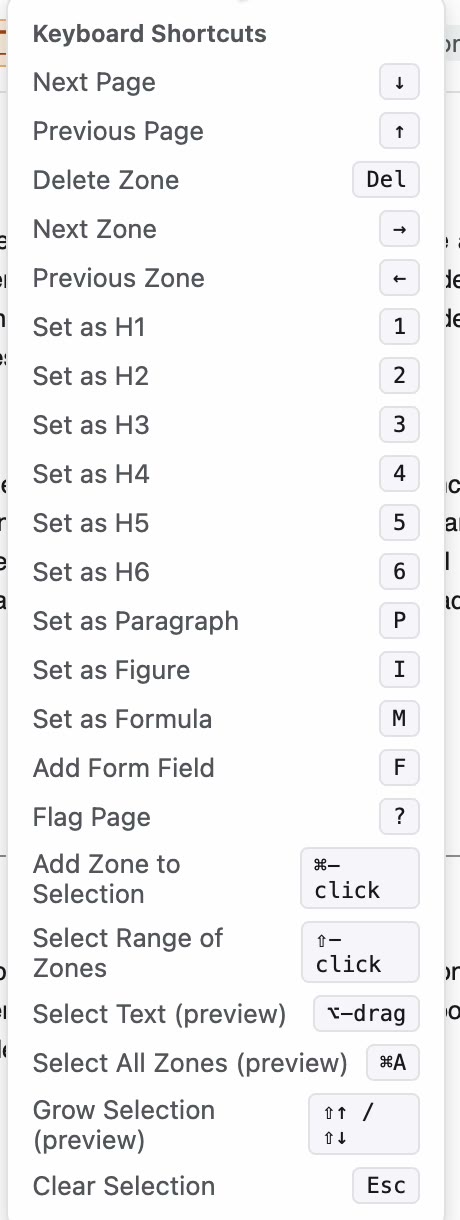
Hover over the keyboard button at the top right to see every keyboard shortcut. For example, ↓ and ↑ go to the next and previous page, Del deletes the selected zone, and P sets it as a paragraph.
Clicking the keyboard button turns shortcuts off and on. Shortcuts are on when the button is filled in purple.
Check it worked
You can find each part of the editor: the thumbnails, table of contents, chapters and zone list on the left, the PDF in the middle, and the HTML Preview on the right. Start your checks with the page labels: see Fix page numbers.
Related articles
Watch the video
Editor basics, part 4 of the PDFxt video series.