
In this section
Choose settings and save PDF presets
Choose how indexes, forms, figures and other elements are handled before the analysis, and save those choices as a PDF preset your team can reuse.
Before PDFxt analyses a document, you can choose how it handles elements such as indexes, printed forms and figures. Set them on the document each time, or save them once as a PDF preset and pick the preset when you start.
Choose settings for one document
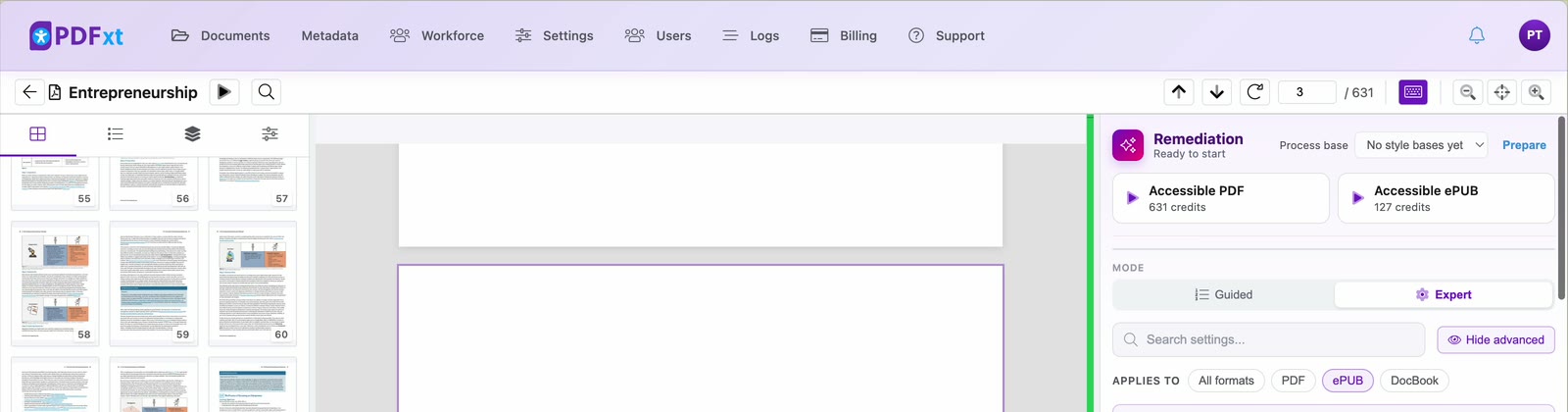
After preflight, the Remediation panel opens on the right of the document.
- Look through the settings, grouped under Analysis and Export. Use Search settings to find one by name, and Applies to to show only the settings for one output format, such as ePUB.
- Change what you need. For example, Index entry structure sets how index entries are tagged, and Printed form fields sets whether write-in lines and checkboxes become fillable fields or stay as ruled lines.
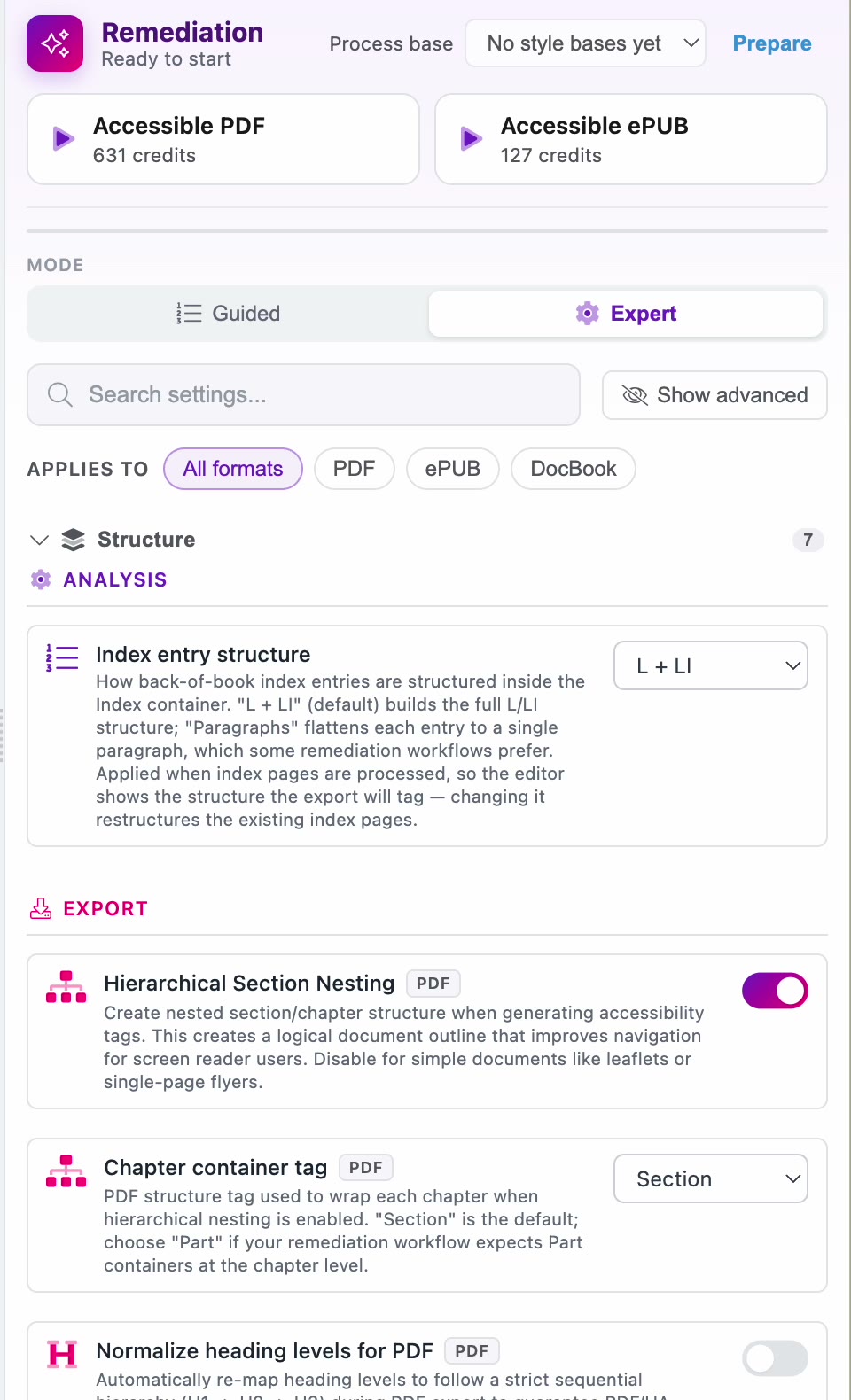
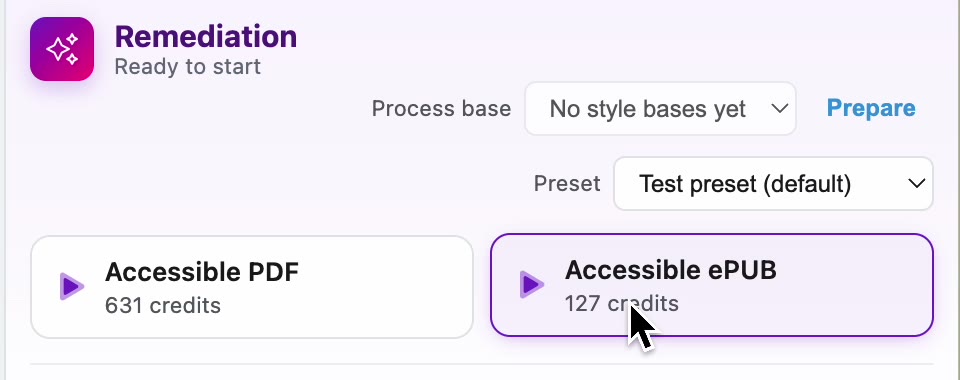
- Click Accessible ePUB to start the analysis. Each button shows the credits the conversion uses.
Save your settings as a PDF preset
If you use the same settings for most of your titles, save them as a preset.
- Click Settings in the top bar, then open the PDF presets tab.
- Click New preset.
- Give the preset a Name, and optionally a Description that tells your team when to use it.
- If this preset should be chosen automatically for new documents, check Default.
- Set each setting the way you would on a document.
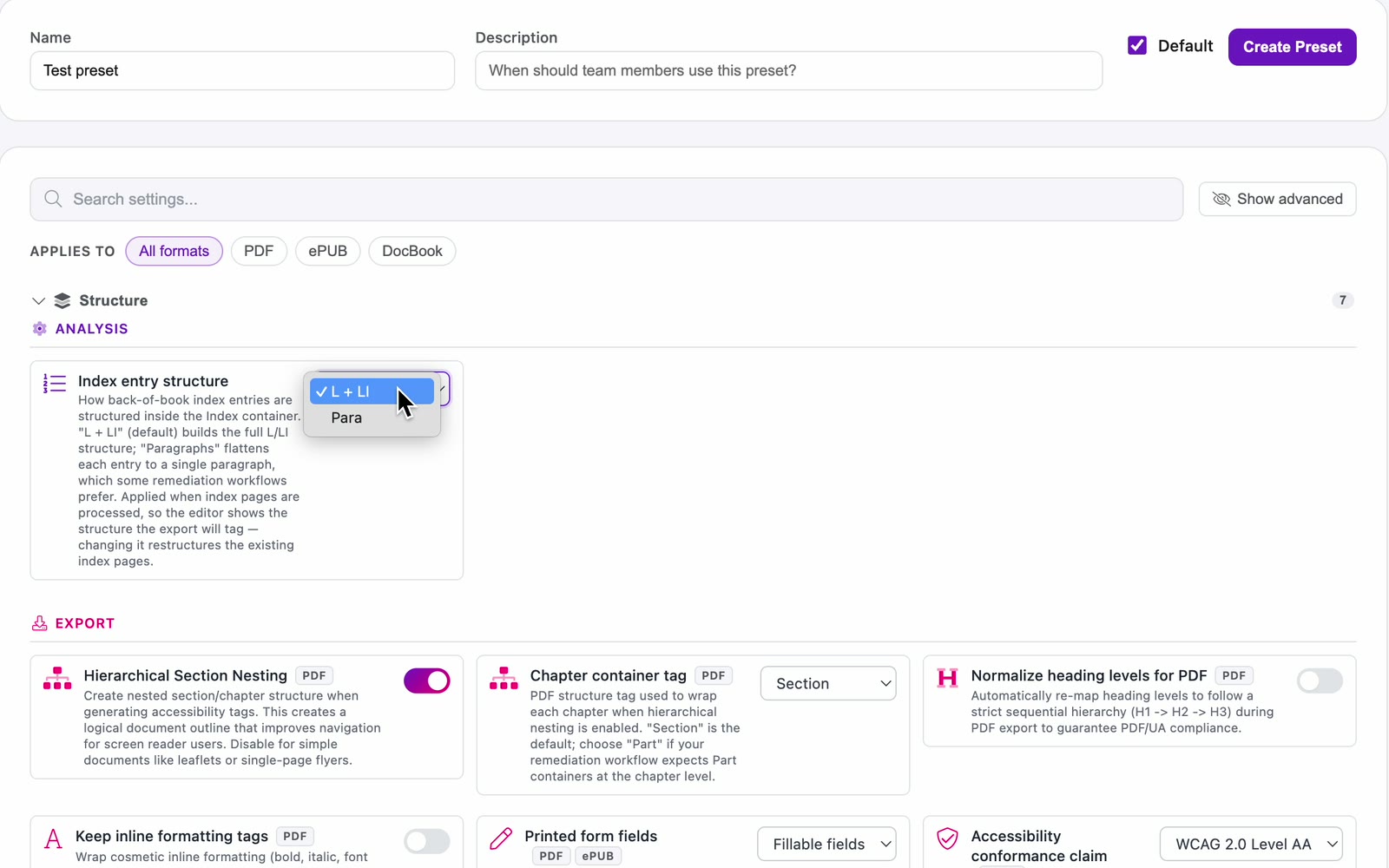
- Click Create Preset.
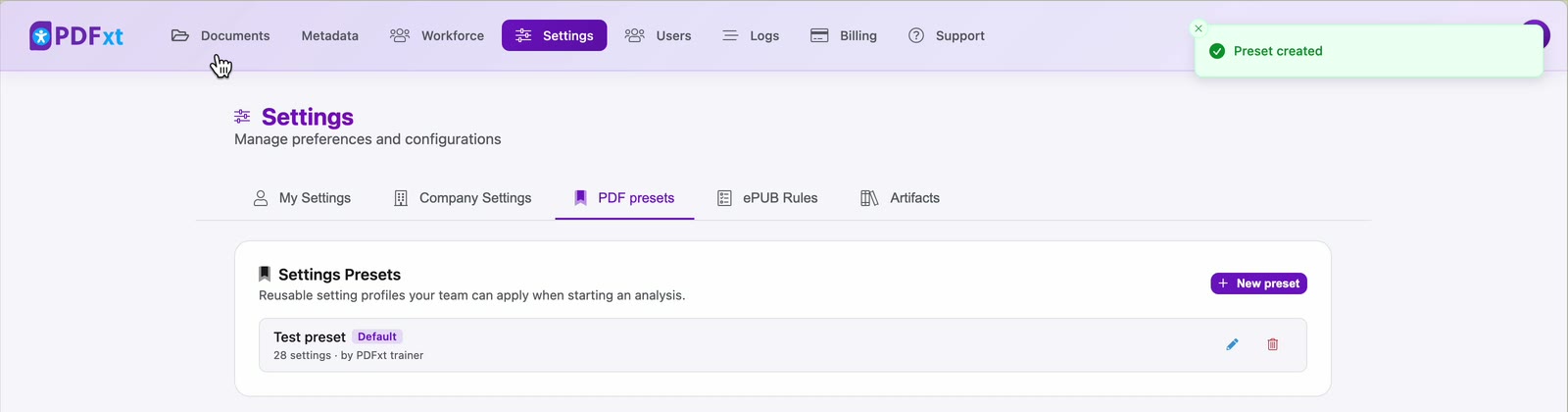
The preset appears in the list, with a Default label if you chose that. Use the pencil to edit a preset and the bin to delete it.
Use a preset on a document
- Open the document. The Remediation panel now has a Preset dropdown, with your default preset already chosen.
- Choose a different preset if you need one, then click Accessible ePUB.
Check it worked
The document starts processing with your settings. When the analysis finishes, the zones appear on each page and you can start checking them. See Find your way around the editor.
Related articles
Watch the video
Settings & PDF presets, part 3 of the PDFxt video series.