
In this section
Review preflight checks
PDFxt checks every PDF for problems such as encryption, broken fonts and scanned pages before conversion. Fix or skip what it finds, then complete preflight.
Before PDFxt analyses a PDF, it runs a set of automated preflight checks to make sure the file is in good shape. Problems such as encryption, broken font encoding or scanned pages are much easier to fix here than later in the editor.
Open the preflight checks
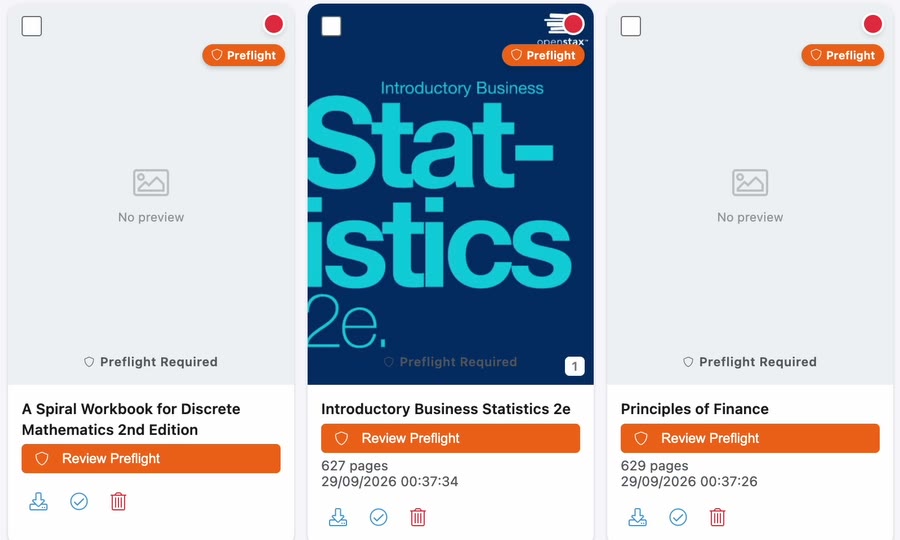
- On the Documents page, click Review Preflight on the title's card.
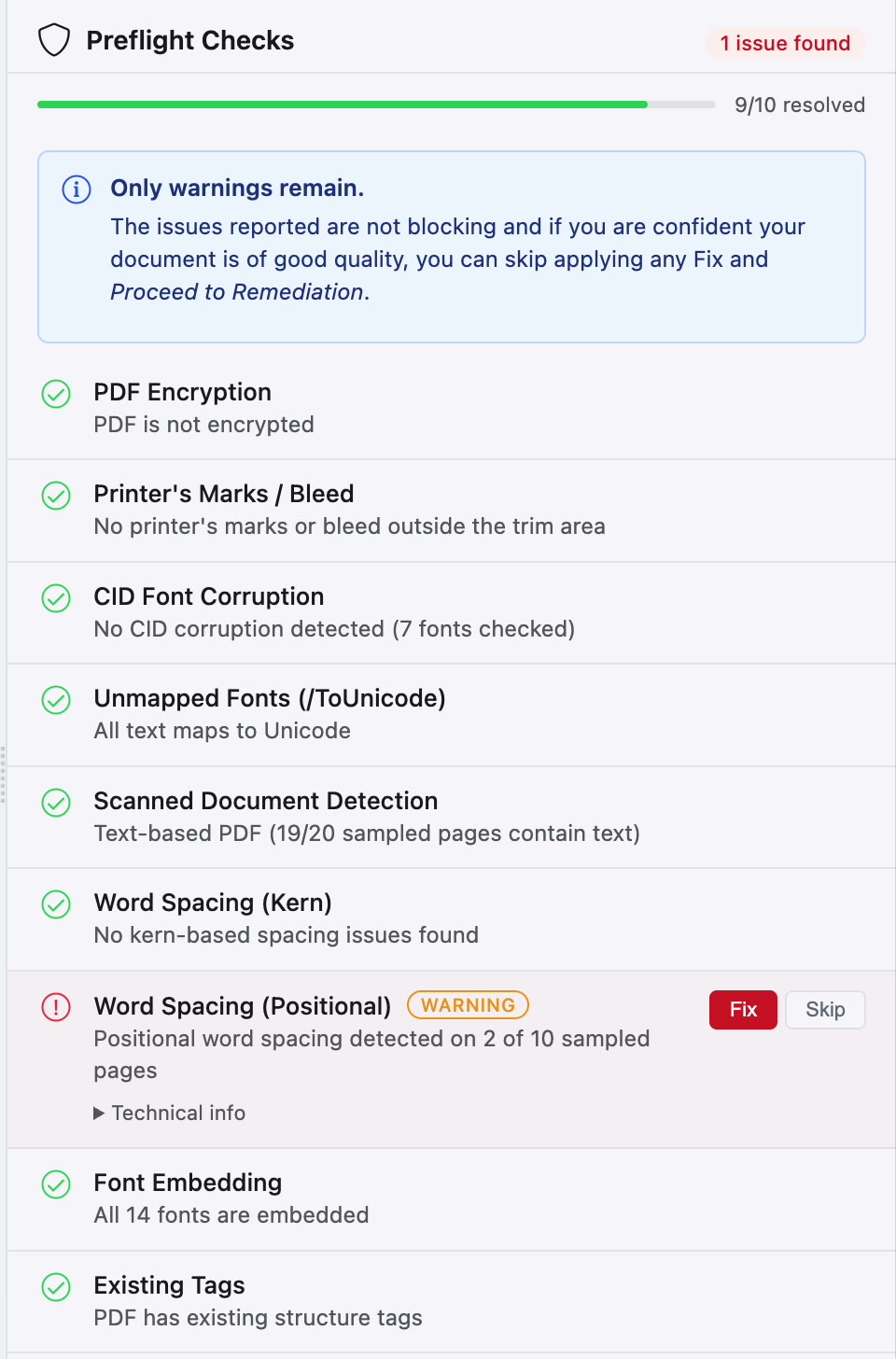
- The document opens, with the Preflight Checks panel on the right. The top of the panel shows how many issues were found and how many checks are resolved.
What the checks look for
| Check | What it looks for |
|---|---|
| PDF Encryption | Whether the PDF is encrypted. |
| Printer's Marks / Bleed | Crop marks or bleed outside the trim area. |
| CID Font Corruption | Fonts whose characters don't decode to the right text. |
| Unmapped Fonts (/ToUnicode) | Text that can't be mapped to Unicode characters. |
| Scanned Document Detection | Pages that are images of text rather than real text. |
| Word Spacing (Kern) and Word Spacing (Positional) | Words run together or split apart because of how spacing was set in the PDF. |
| Font Embedding | Fonts that aren't embedded in the file. |
| Existing Tags | Structure tags already in the PDF. |
| Page Count | How many pages the document has. |
A green tick means the check passed. A check that found something shows Fix and Skip buttons, and Technical info opens the details.
Fix or skip what preflight finds
- For each check that found something, click Fix to have PDFxt correct it, or Skip to leave the PDF as it is.
- When only warnings remain, the panel tells you so. Warnings don't block the conversion, and many of them, such as the word spacing checks, don't affect an ePUB. If you're confident the PDF is of good quality, you can skip them.
- Click Complete preflight. If any warnings are still open, PDFxt lists them and asks you to confirm with Continue anyway.

Complete preflight stays greyed out until every required check is fixed or skipped.
Check it worked
The Preflight Checks panel closes and the Remediation panel takes its place, ready for you to choose settings and start the analysis. See Choose settings and save PDF presets.
If something goes wrong
- A fix made things worse. Click Rollback to original. This discards every fix applied during preflight, such as font corrections, OCR or decryption, and runs all the checks again on the PDF you uploaded.
- Complete preflight is greyed out. A required check is still open. Fix or skip it, and wait for any fix that's running to finish.
Related articles
Watch the video
Preflight checks, part 2 of the PDFxt video series.