
Clean up styles and map company styles
Tidy the stylesheet PDFxt extracts from your title, remove unused styles, merge near-duplicates and replace styles with your company's house styles.
During the analysis, PDFxt extracts a stylesheet from your PDF, with one style for each look it finds in the title. Tidying that stylesheet before export keeps the ePUB's CSS small and consistent. If your company has a house stylesheet, you can also replace the extracted styles with your own, so every title in your catalog uses the same styles.
Before you start
To use company styles, your company's CSS file must first be uploaded as an Artifact. An admin uploads it under Settings > Artifacts, with Upload files. Upload any fonts the stylesheet uses there too.
Open the Styles page
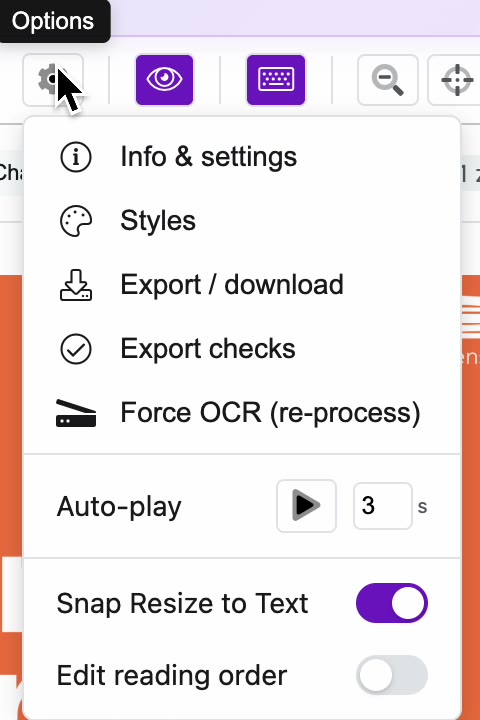
- In the editor, click the gear button, Options, at the top right.
- Choose Styles.
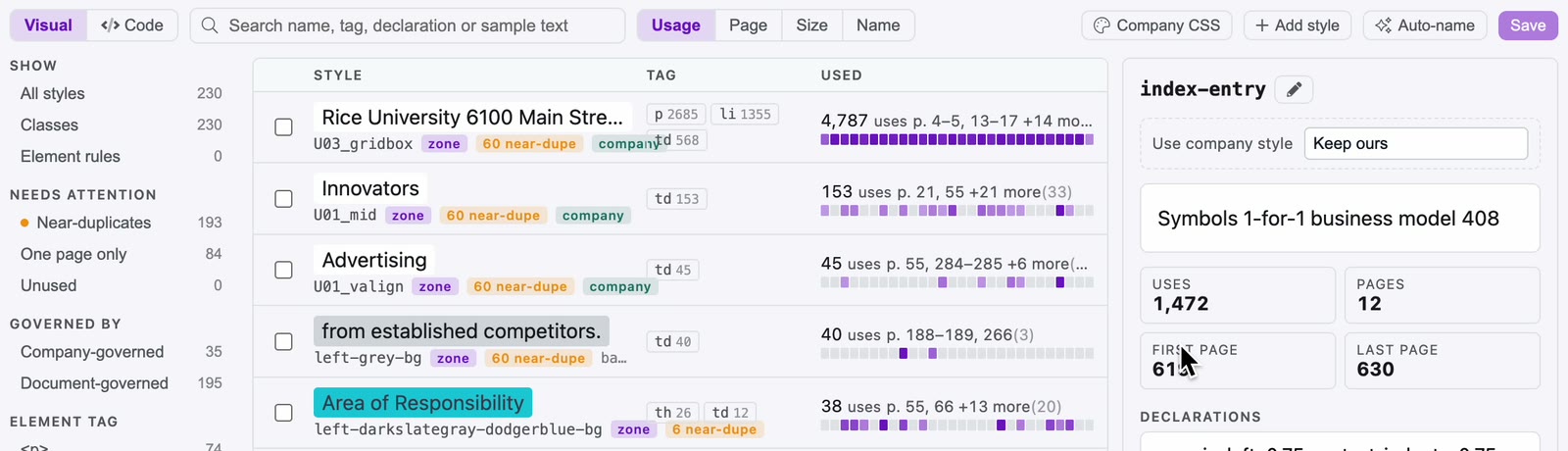
The Styles tab lists every style in the title. Each row shows a sample of the text that uses the style, the style's name, its tags and how many times it's used, with the pages it's used on. Select a style to see its declarations and every page it appears on.
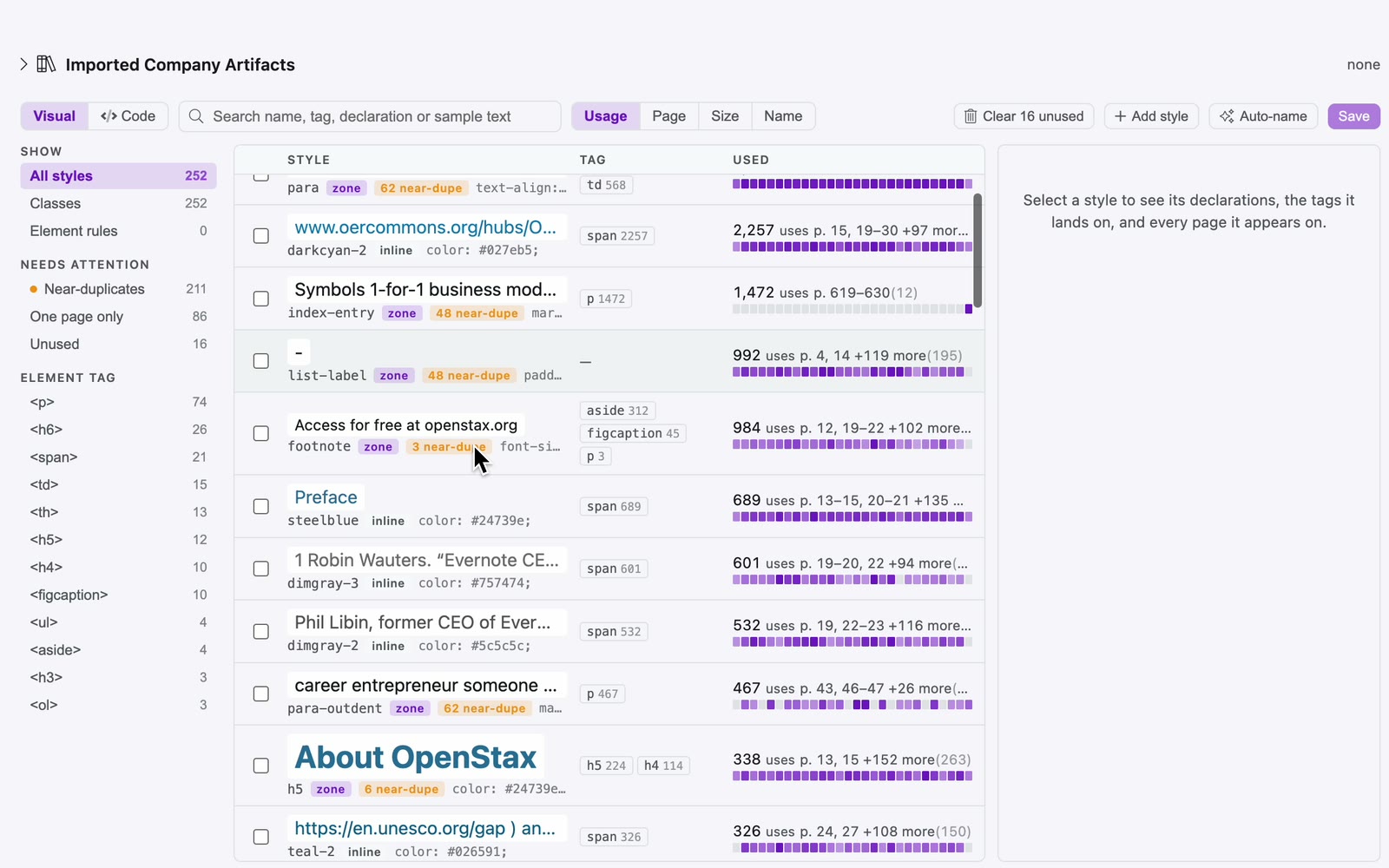
Use the filters on the left to narrow the list. Under Needs attention, the counts show how many styles are Near-duplicates, used on One page only, or Unused.
Remove unused styles
A style is unused when no zone uses it and no content refers to it. Removing unused styles doesn't change how the title looks.
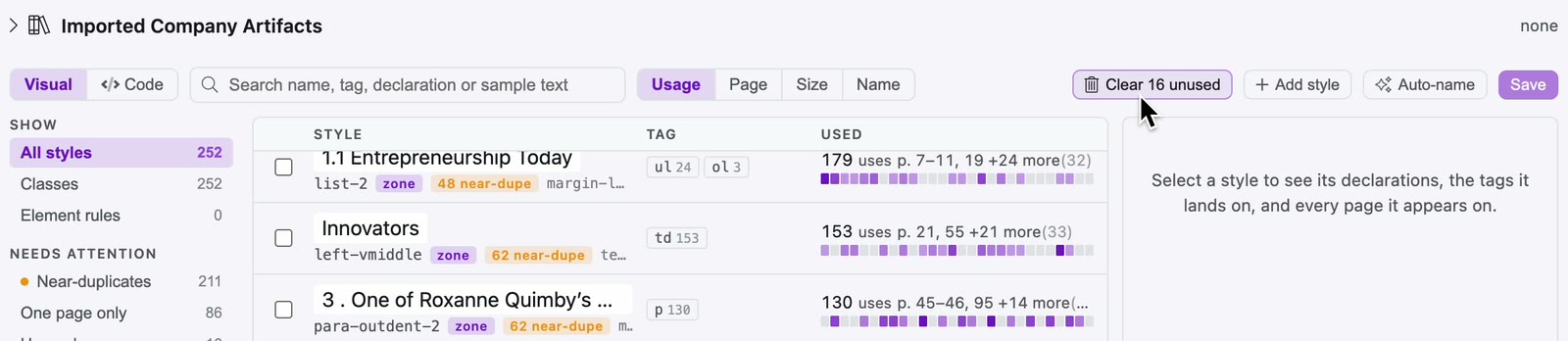
- Click Clear N unused above the list, where N is the number of unused styles.
- Confirm. PDFxt deletes them and the Unused count drops to 0.
Merge near-duplicates
Near-duplicates are styles that look almost the same, often because of small differences in the PDF. Merging them leaves fewer styles to manage.
- Under Needs attention, click Near-duplicates.
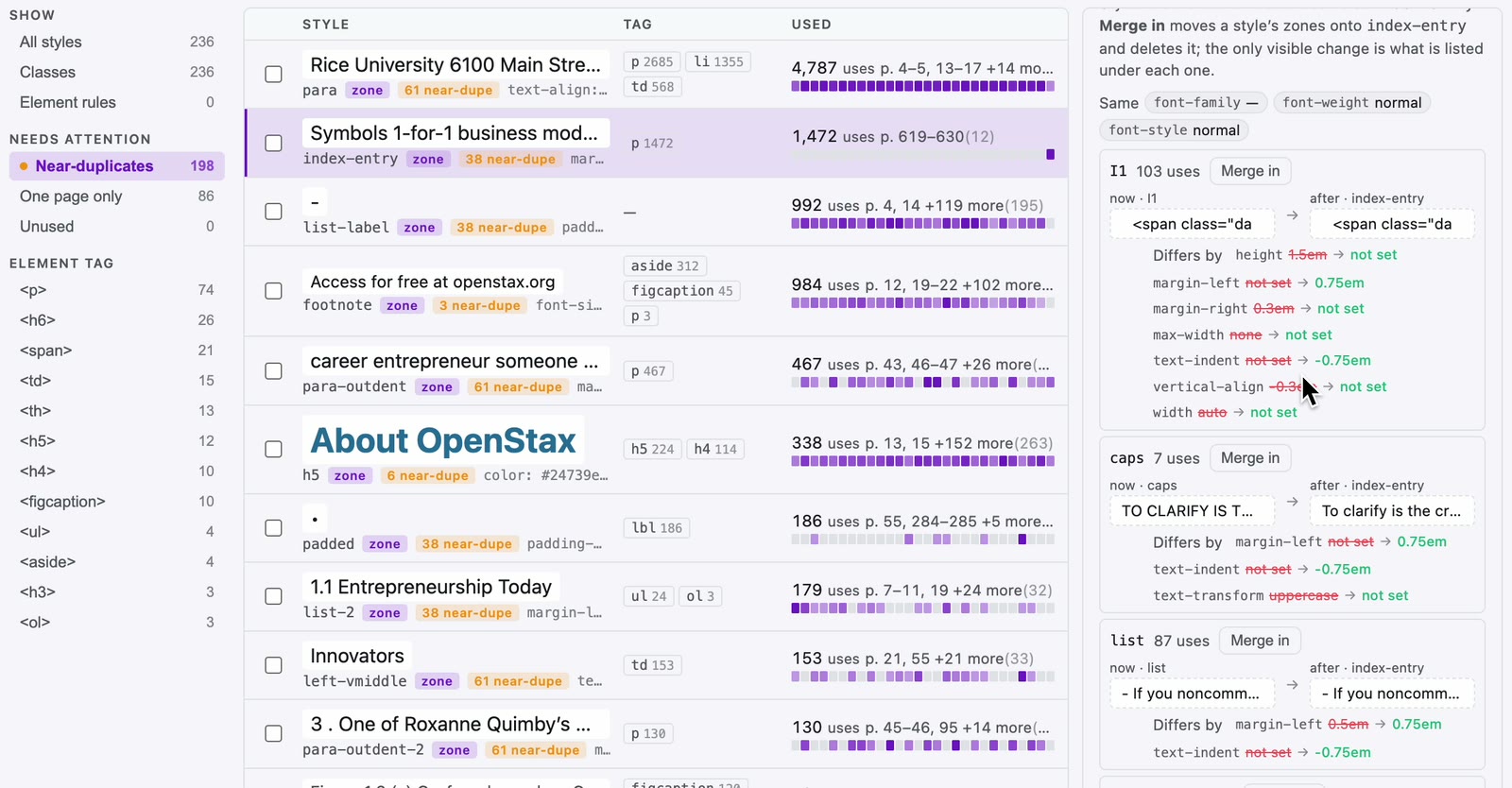
- Select a style in the list. On the right, under Near-duplicates, PDFxt lists the styles that look almost the same as it, and what each one Differs by.
- If a style should look the same as the one you selected, click Merge in beside it, then confirm. Its zones move to the selected style and the merged style is deleted.
Import your company stylesheet
- At the top of the Styles tab, open Imported Company Artifacts.
- Under Add from library, open Choose an artifact… and choose your stylesheet, listed as CSS: followed by its file name.
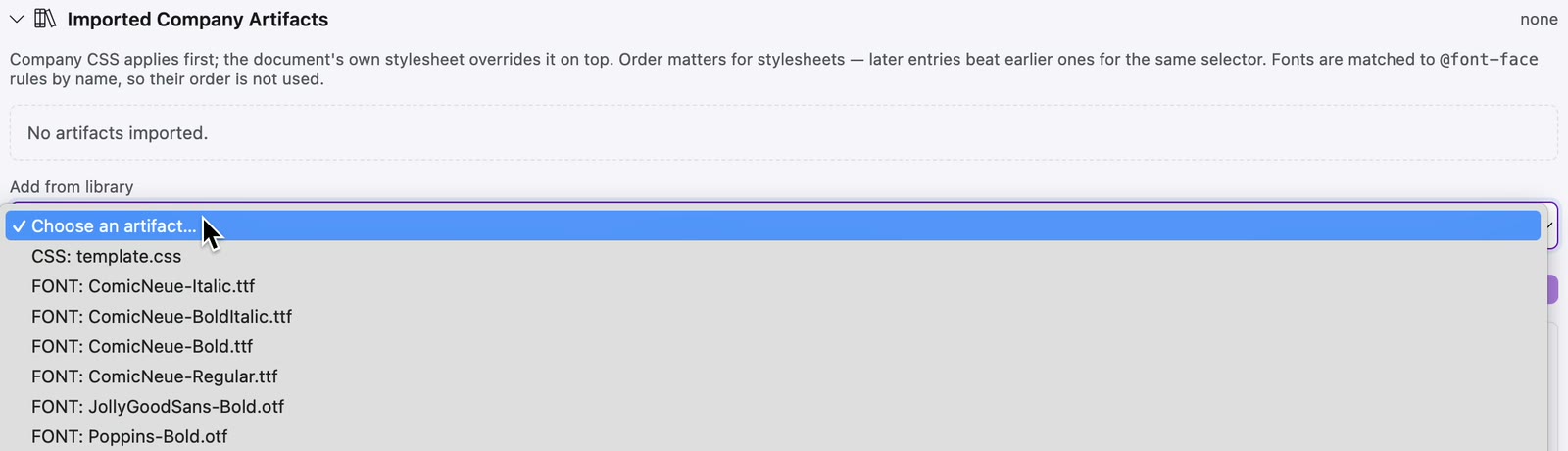
PDFxt adds the stylesheet and the fonts it refers to. They're listed under Stylesheets and Fonts, and a Company CSS button appears above the list of styles.
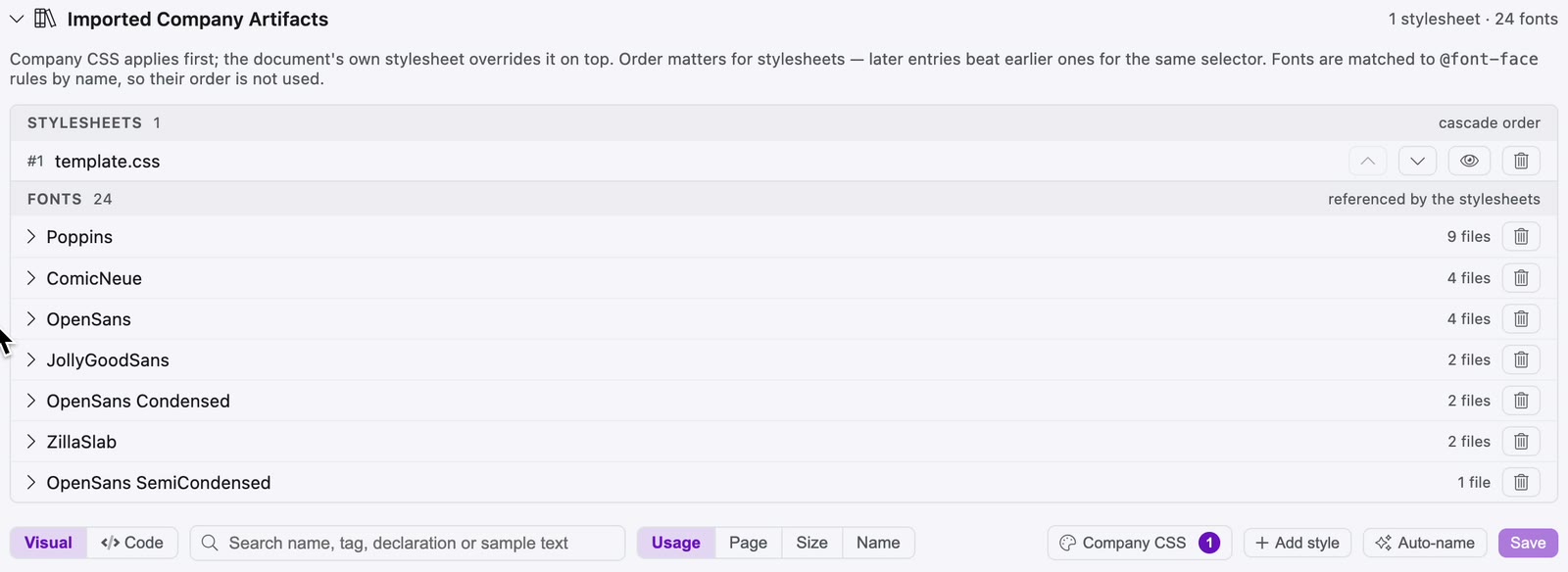
Review the suggested mappings
When you import a stylesheet, PDFxt compares it with the title's styles and suggests a company style to replace each one that matches.
- Click Company CSS. The Use company styles dialog opens.
- On the left of each row is one of your title's styles, with the number of zones that use it. On the right is the company style PDFxt suggests in its place.
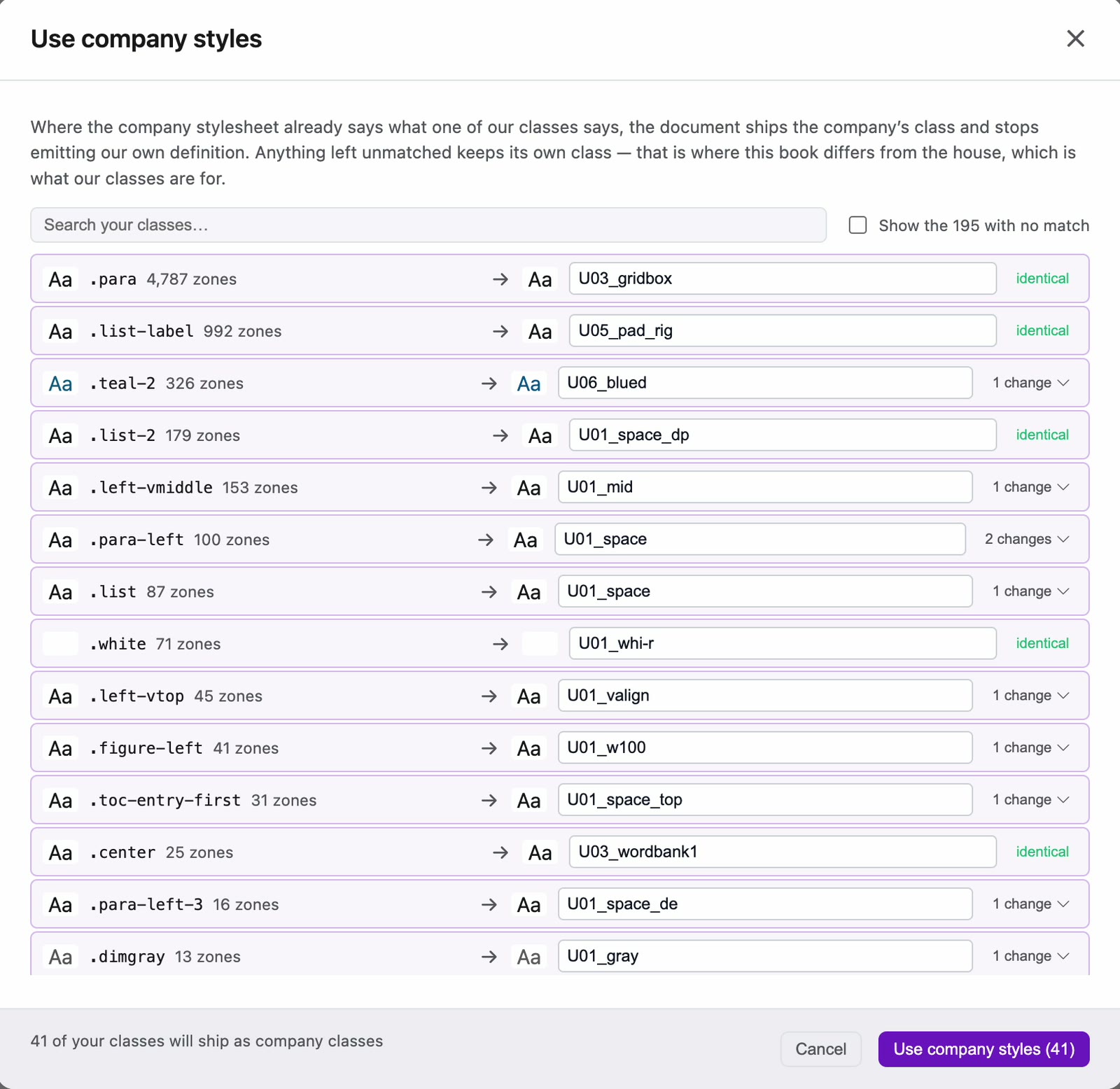
- Check each suggestion. identical means the two styles are the same. Where it says 1 change or more, click it to see what would change.

- To use a different company style, choose it from the dropdown on the right. To keep your own style, choose Keep ours.
- Styles with no suggestion are hidden. To choose a company style for one of them, tick Show the N with no match.
- Click Use company styles. The button shows how many of your styles will be replaced.
PDFxt confirms how many styles it mapped to the company CSS. Overrides on the zones that use them are cleared, so your house styles apply.
Choose a company style for one style
You can also replace a single style without opening the dialog.
- Select the style in the list.
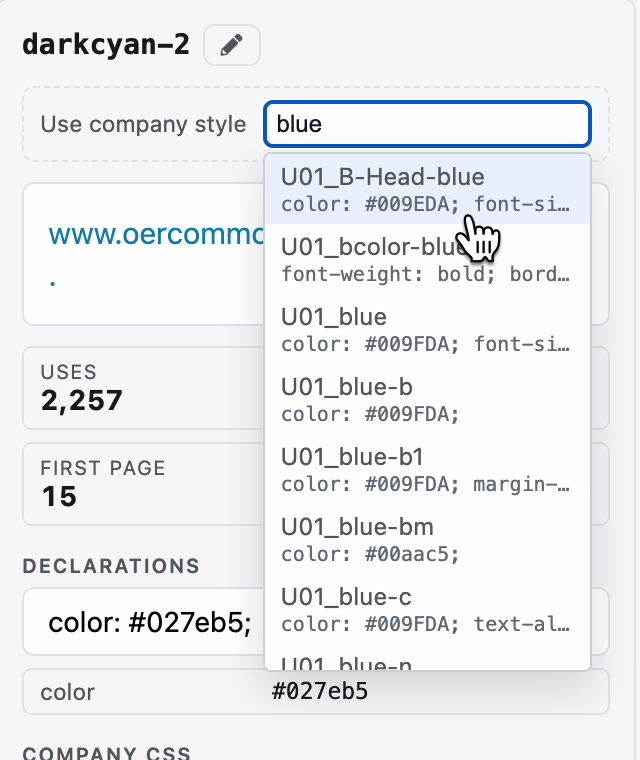
- On the right, next to Use company style, open the dropdown. Type to search the company styles.
- Choose the company style and confirm.
Check it worked
- The filters now have a Governed by section. Company-governed lists the styles the company stylesheet now controls, and Document-governed lists the title's own styles. Company-governed styles have a company label in the list.
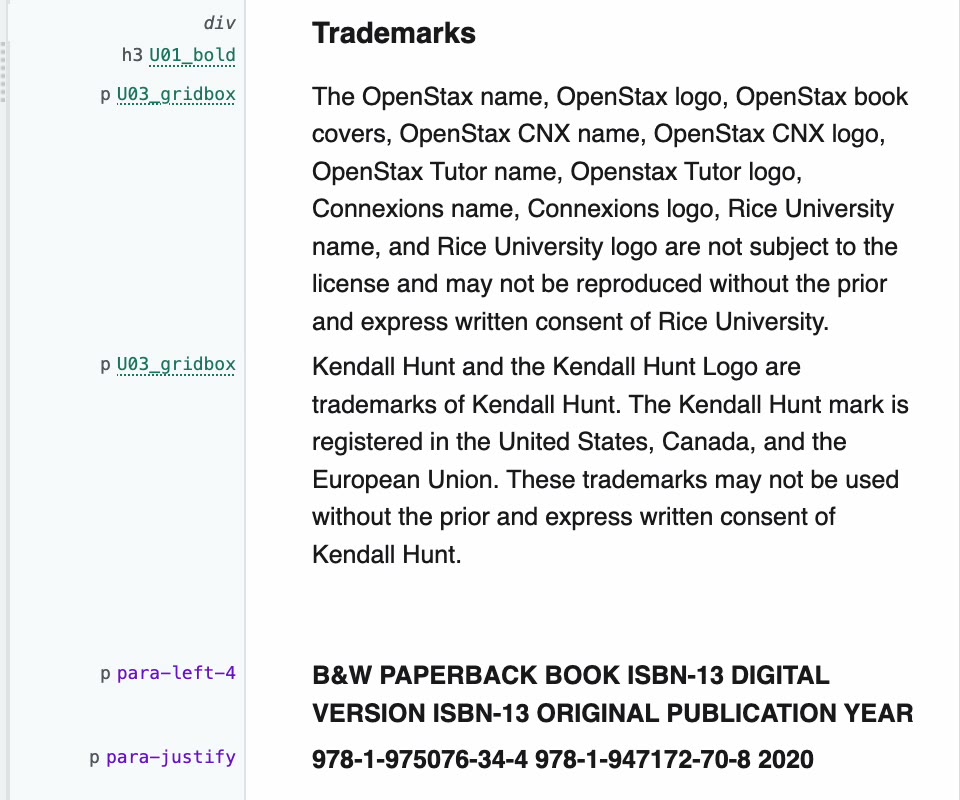
- Click Return to document to go back to the editor. Turn on style names in the HTML Preview with the tag button. Document styles are shown in purple and company styles in green.
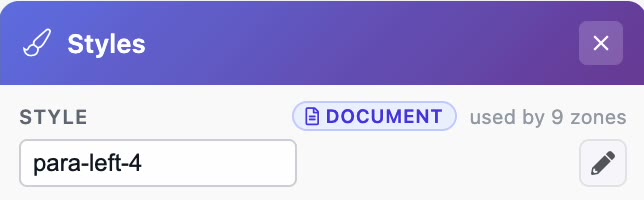
- Click a style name to open the Styles popup. Its label shows whether the style is a document style or a company style.
Related articles
Watch the video
Styles & company styles, part 6 of the PDFxt video series.