
Preview and inspect the ePUB
Read the exported ePUB in the built-in reader beside the source PDF, and open the ePUB editor to inspect every file in the package, including the OPF and NAV.
Once a title is exported, you can check the result without leaving PDFxt. The built-in ePUB reader shows the ePUB as a reader would see it, beside the source PDF. The ePUB editor opens the package itself, so you can inspect the HTML, images, OPF and NAV files and make changes if you need to.
Before you start
You need a completed ePUB export. See Export the accessible ePUB.
Open the ePUB reader
- In the editor, click the Options cog in the toolbar at the top right, then choose Export / download.
- Under Export History, find the version you want to check and click Preview.

The reader opens, with the ePUB on the left and the Source PDF pane on the right.
Read the ePUB beside the source PDF
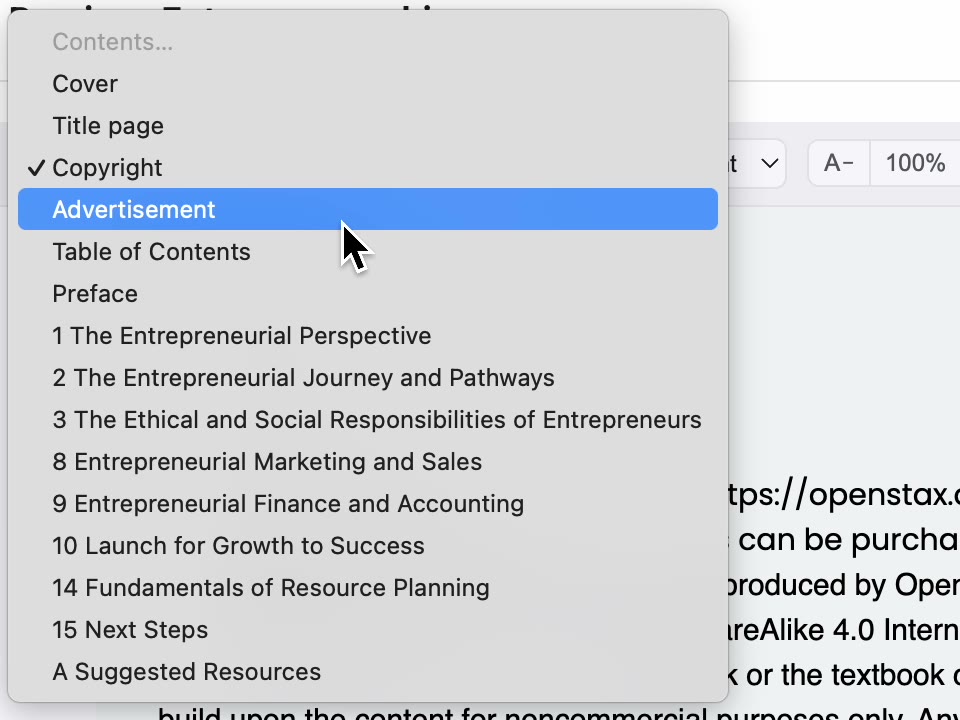
- To jump to a section, choose it from the list at the top left of the reader. It lists every section in the ePUB's table of contents.
- Use the arrows on either side of the page to move through the ePUB. The counter at the top right shows where you are.
- Use the arrows at the top of the Source PDF pane to turn the PDF's pages, and compare the ePUB with the printed page.
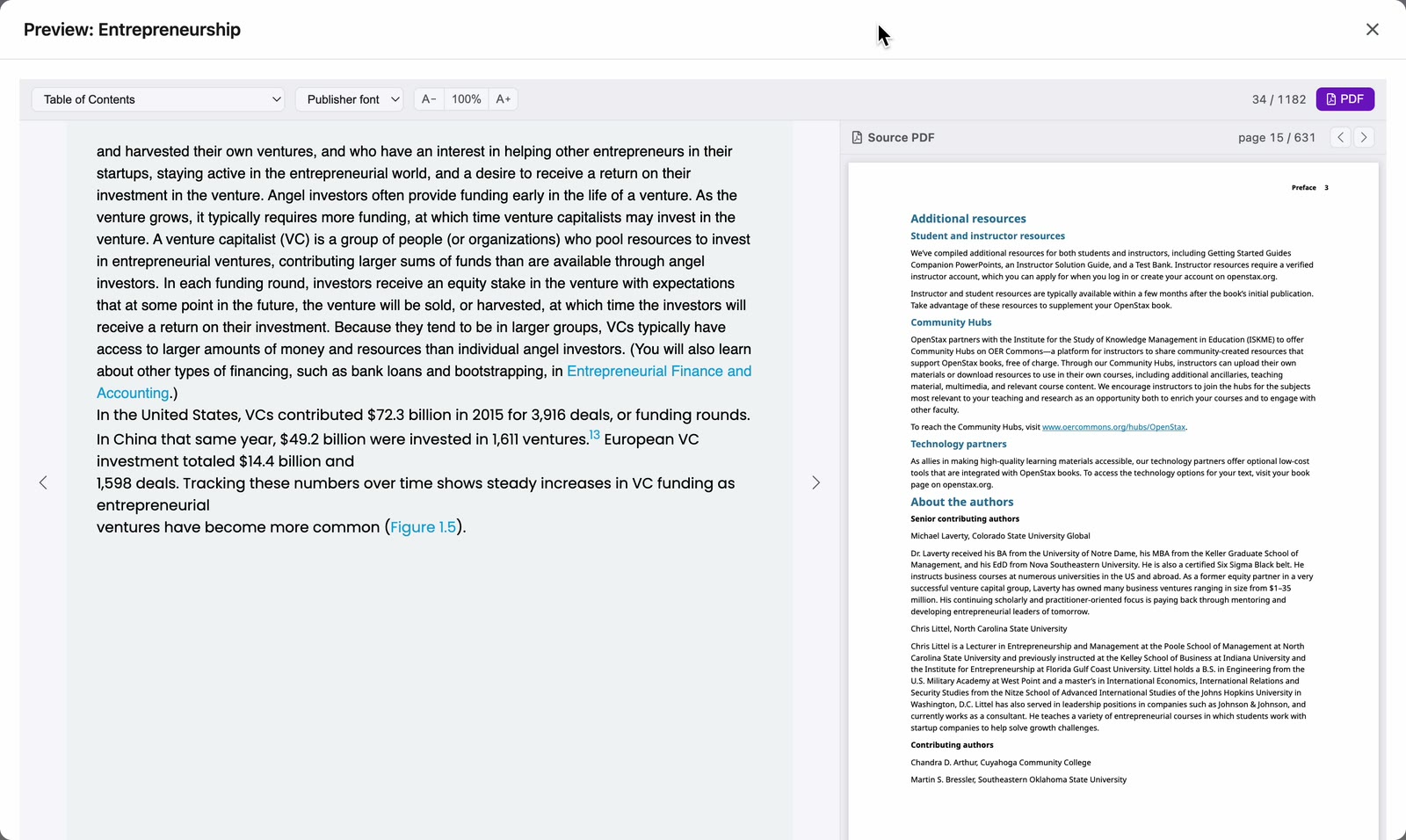
You can also change the reading font and text size from the toolbar, and click PDF to hide or show the Source PDF pane.
Inspect the files in the ePUB
- Under Export History, click Edit next to the version you want to inspect.
- The ePub Editor opens. The first time you open a version, PDFxt unpacks it, which can take a little while. It opens straight away after that.
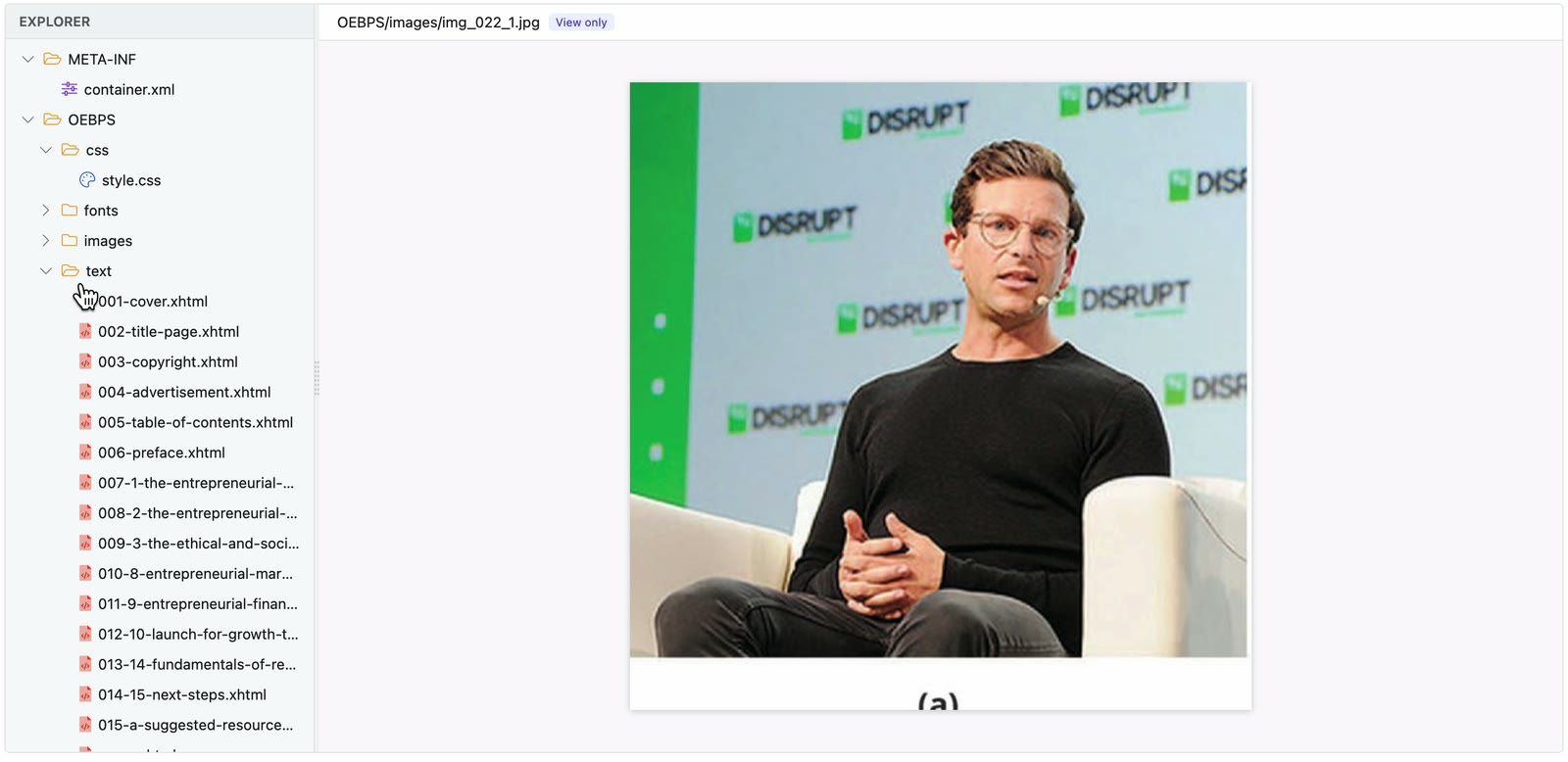
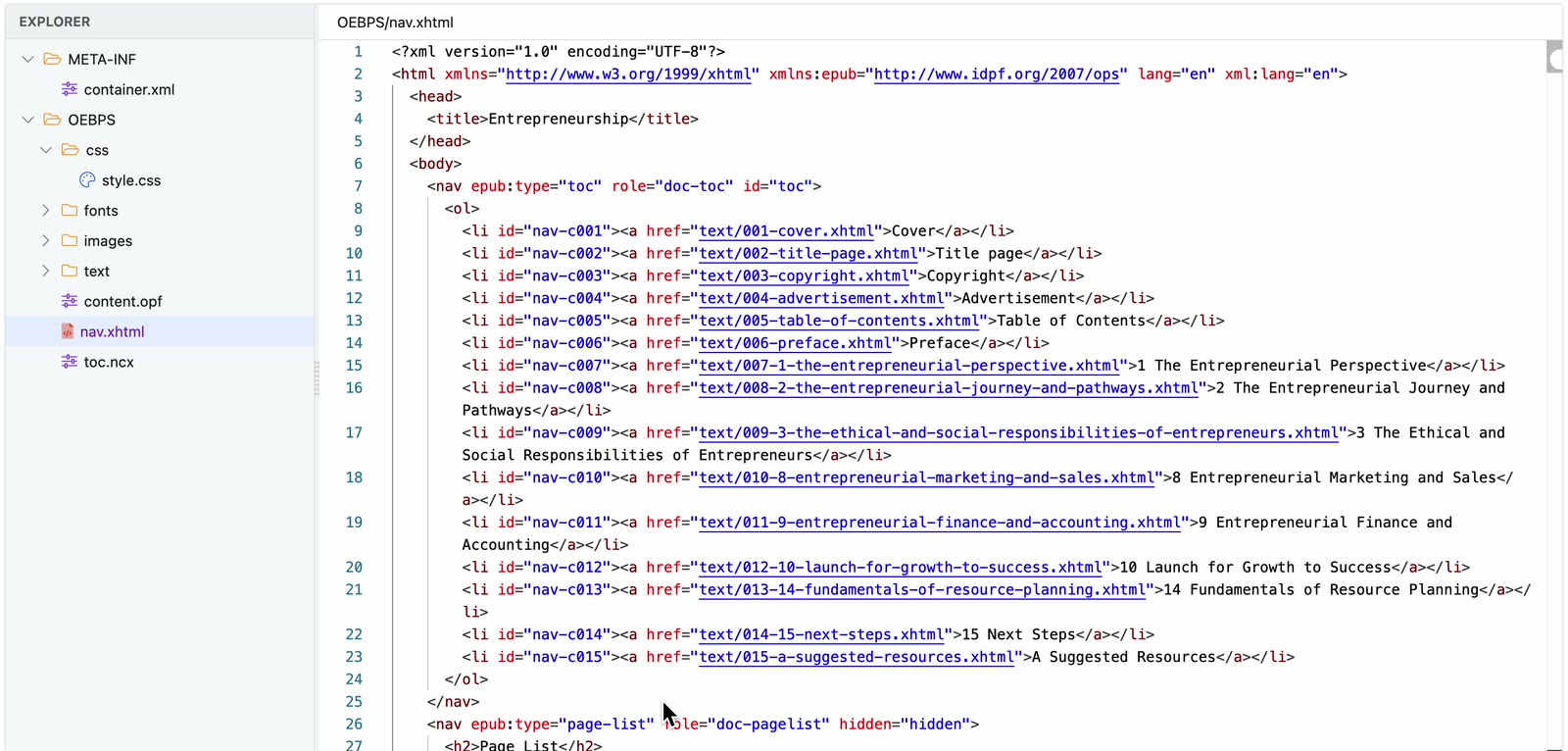
- Use the EXPLORER on the left to browse every file in the package, and click a file to open it on the right.
- images holds the figures. Click one to view it.
- text holds the HTML file for each section, in reading order.
- css holds the stylesheet, and fonts the embedded fonts.
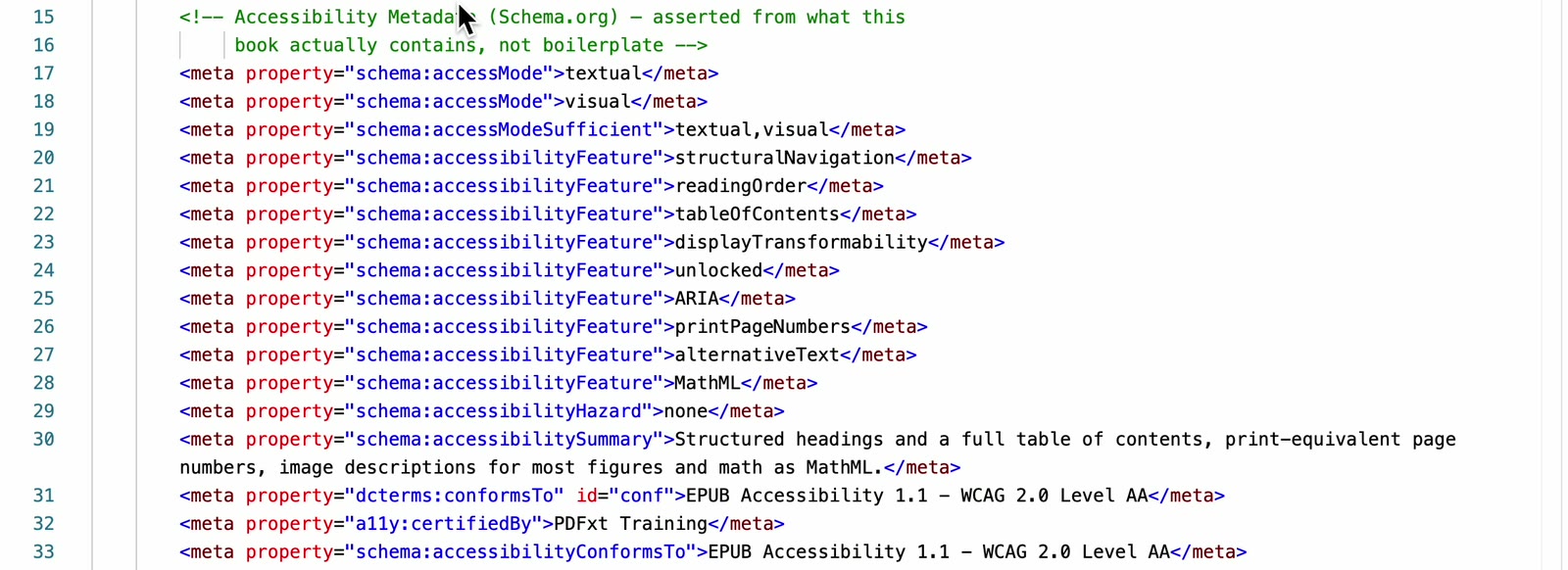
- Click content.opf to see the package document. It lists every file and the reading order, and includes the accessibility metadata: access modes, accessibility features, hazards, the accessibility summary and the conformance statement.
- Click nav.xhtml to see the navigation document, with the table of contents that reading systems show. toc.ncx holds the same table of contents for older reading systems.
Make changes if required
Files you can edit open as code. Images are marked View only. Edit a file in place, then click Save & Create New Version to build a new version of the ePUB with your changes. Click Cancel to close the editor without saving.
Check it worked
The reader shows the ePUB's sections in the right order, and each one matches the source PDF. In the ePUB editor, content.opf contains the accessibility metadata and nav.xhtml lists every section in the table of contents.
Related articles
Watch the video
ePUB preview, part 15 of the PDFxt video series.