
Check and edit ePUB metadata
Review the title, author and language PDFxt detects, add the ISBN, publisher, copyright and publication date, and save them before you export.
Every ePUB carries metadata: the title, author, language and bibliographic details that reading systems, retailers and library catalogues display. PDFxt detects most of it from the PDF. Before you export, check what it found, correct anything that's wrong and add the details only you know, such as the publisher and the ePUB ISBN.
Open the metadata
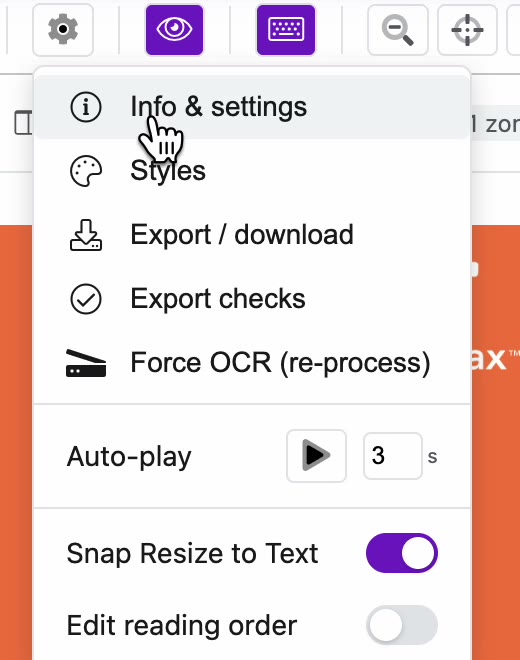
- In the editor, click the Options cog in the toolbar at the top right.
- Choose Info & settings.
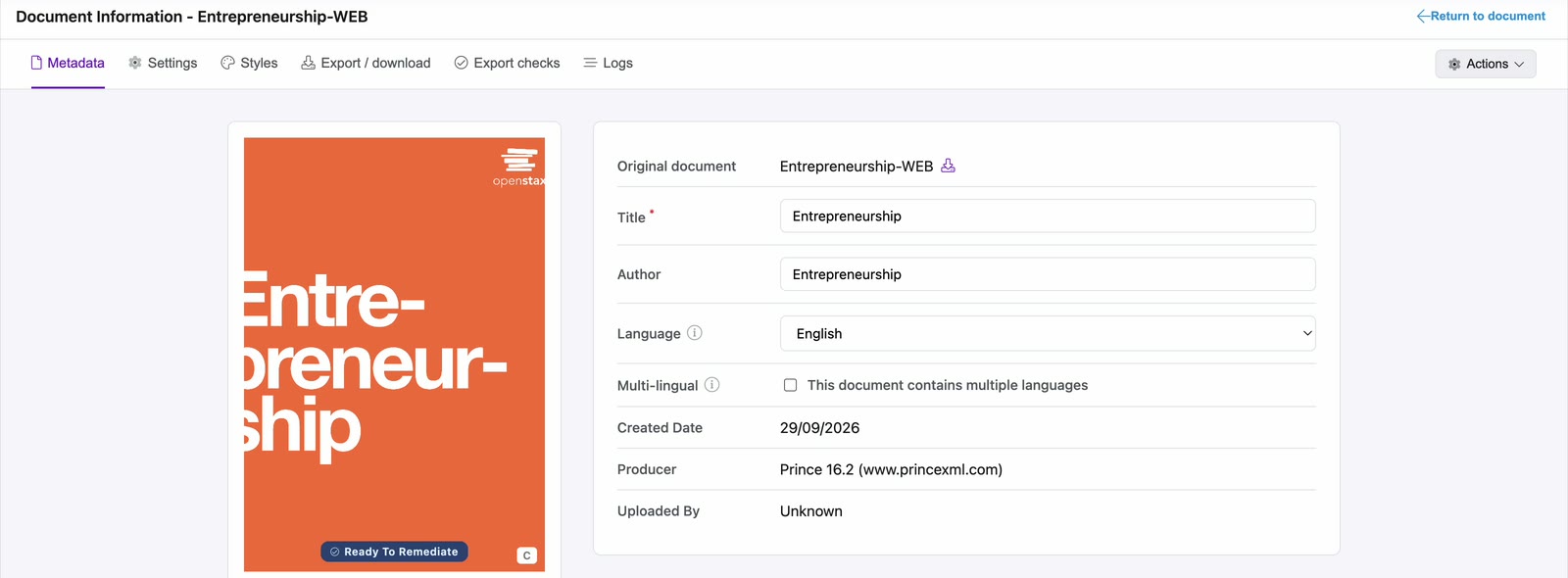
The Document Information page opens on the Metadata tab. It shows the cover on the left and the detected metadata on the right.
Correct the main details
- Check the Title and Author. PDFxt fills both in from the PDF, so a value such as the book title in the Author field is worth correcting. Click the field and type the right value.
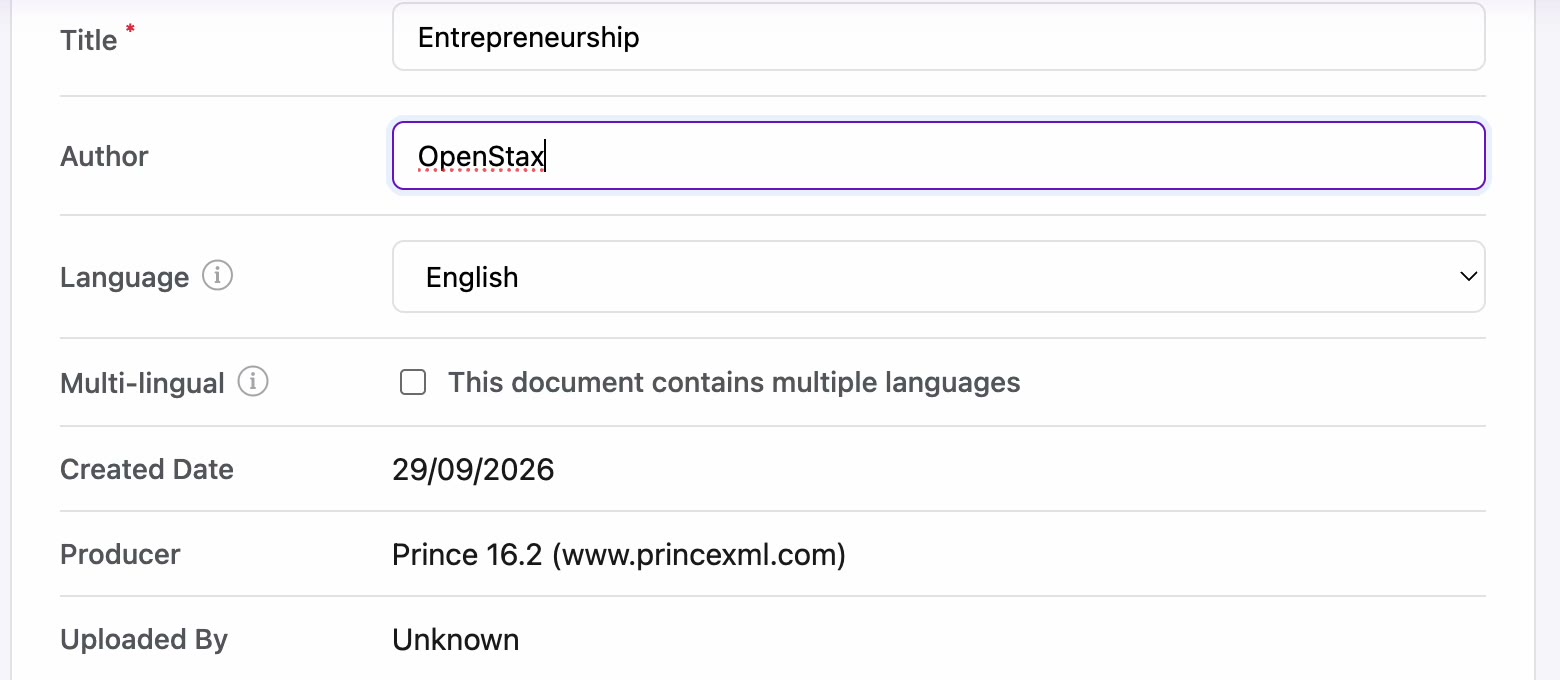
- Check the Language. PDFxt detects the main language of the title, and you can choose a different one from the list.
- If the title mixes languages, check This document contains multiple languages next to Multi-lingual. PDFxt then detects and tags the language of each zone, so screen readers pronounce it correctly.
Created Date, Producer and Uploaded By come from the PDF and the upload, and can't be edited here.
Add the additional ePUB fields
Scroll down to Additional ePub metadata. These fields are optional. Anything you leave blank is left out of the ePUB rather than written empty.
| Field | What to enter |
|---|---|
| Source ISBN | The ISBN of the print edition the PDF came from. PDFxt fills it in when it finds the ISBN in the file name. The ePUB records it as the publication it was made from. |
| ePub ISBN | The ISBN of the digital edition, if it has one. It becomes the ePUB's identifier. Leave it blank to identify the ePUB by its internal ID. |
| Publisher | The publisher's name. |
| Copyright | The rights statement as printed on the copyright page. It's left out of the ePUB unless you enter it. |
| Publication date | The publication year or date as printed. |
| Title sort form | How the title files alphabetically. Left blank, a leading A, An or The is dropped. |
Grey text in an empty field, such as "Publisher Inc" or "© 2026 Publisher Inc", is only an example of the format. It isn't saved or exported.
- Fill in the fields you need. For example, click Publisher and type the publisher's name.
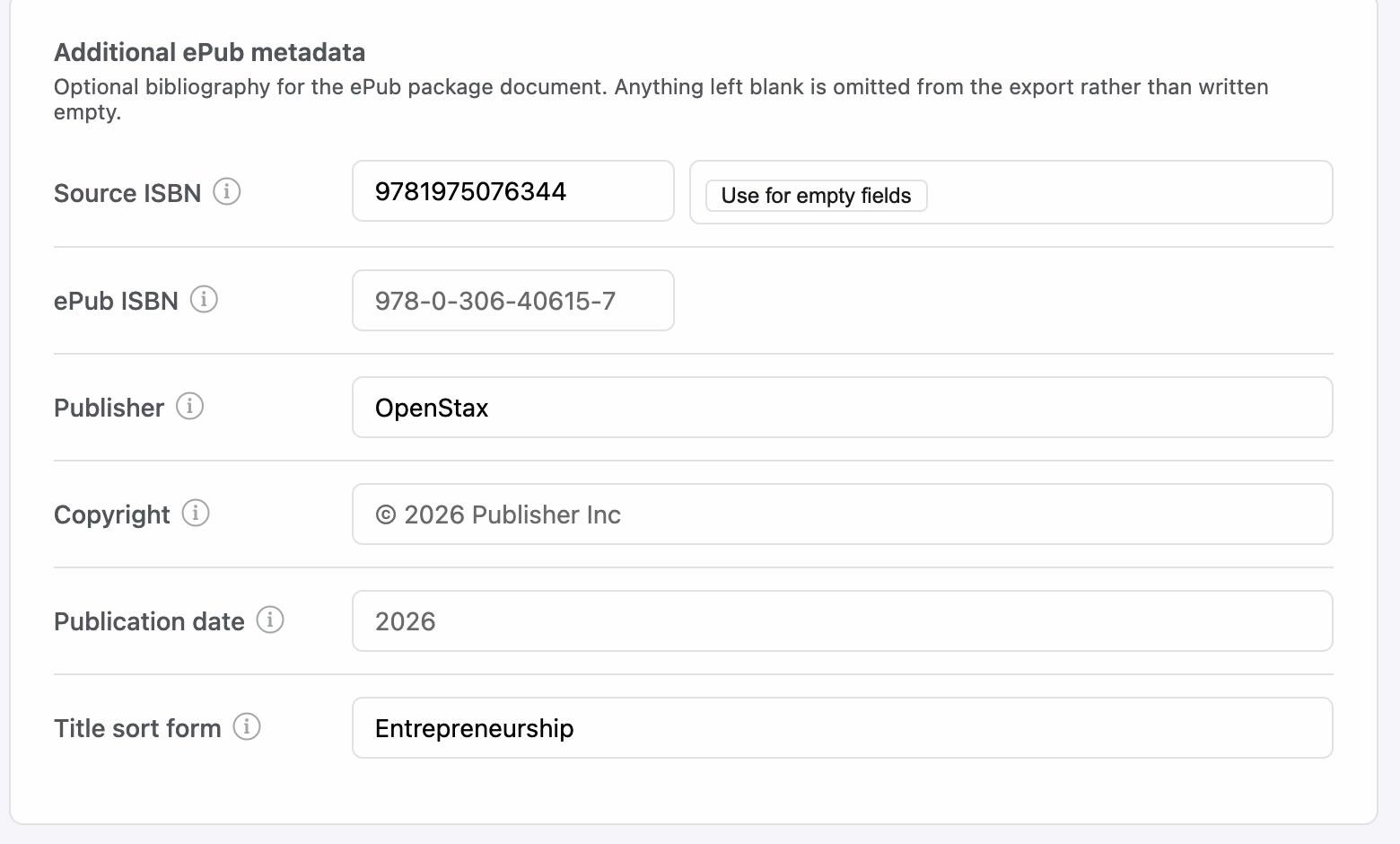
- Click Save Properties at the bottom of the page.
Check it worked
A Document information saved message appears at the top right, and the fields keep the values you entered.

Save your changes before you export, so the ePUB is built with the corrected metadata. See Export the accessible ePUB.
Related articles
Watch the video
Metadata, part 13 of the PDFxt video series.