
Export the accessible ePUB
Check the section structure, fix any pages missed in the chapter chunking, and export the ePUB with EPUBCheck and Ace by DAISY run on the result.
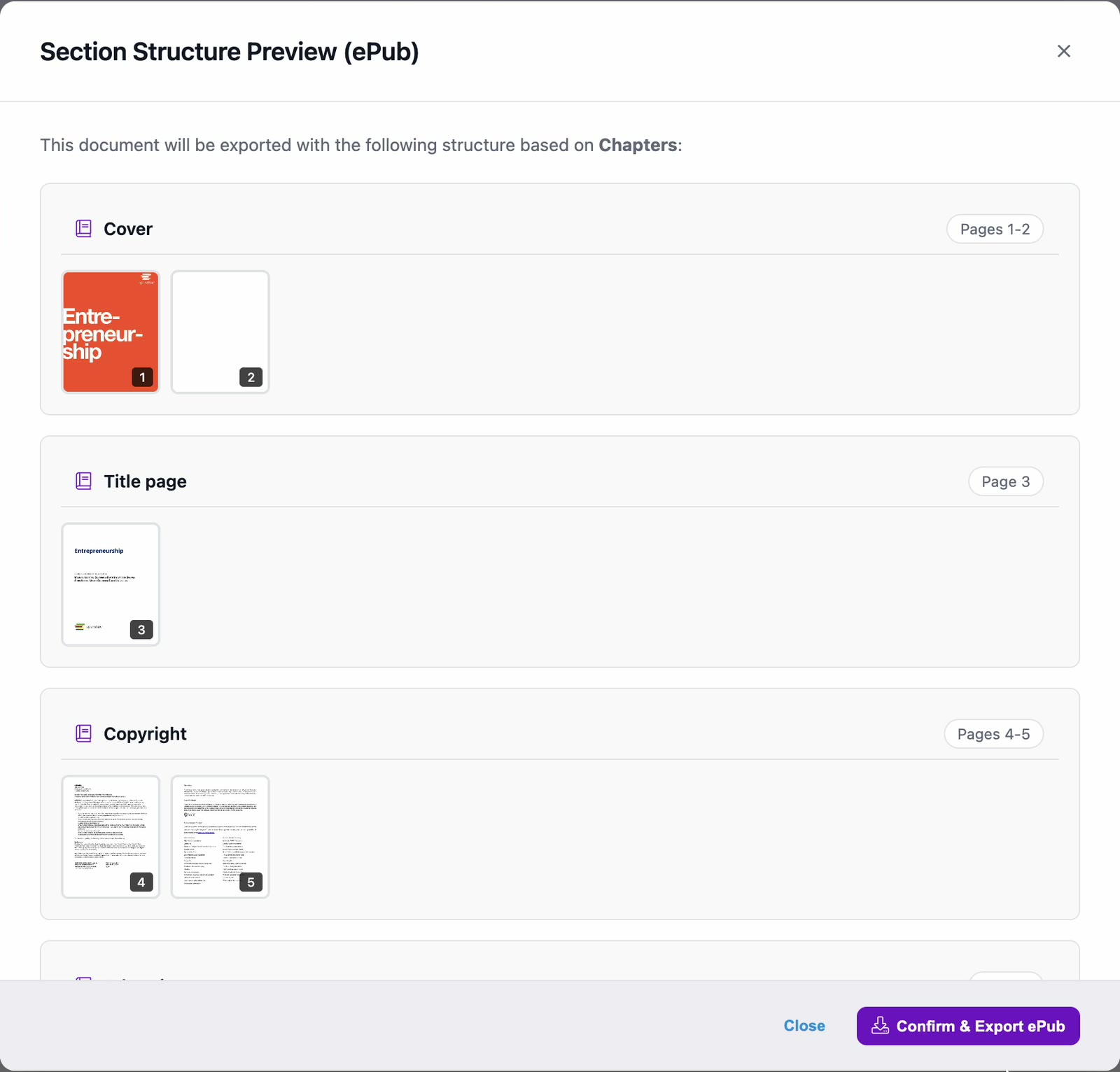
Exporting is the final step. PDFxt builds the ePUB from the zones, chapters, styles and metadata you've checked, and can validate it straight away with EPUBCheck, for structure and packaging, and Ace by DAISY, for accessibility. Before it builds anything, it shows you how the title will be divided into sections, so you can catch chapter problems first.
Before you start
Check the metadata first, so the ePUB is built with the right title, author, publisher and ISBN. See Check and edit ePUB metadata.
Choose the export and its checks
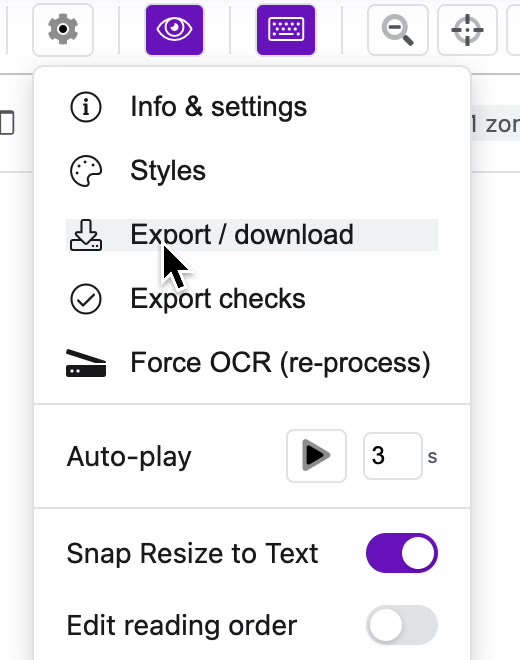
- In the editor, click the Options cog in the toolbar at the top right, then choose Export / download.
- On the Export / download tab, click the arrow next to Accessible ePUB to choose which checks run after the export.
- Under Validate after export, choose EPUBCheck + ACE to run both. You can also choose EPUBCheck or ACE by DAISY on its own, or No validation.
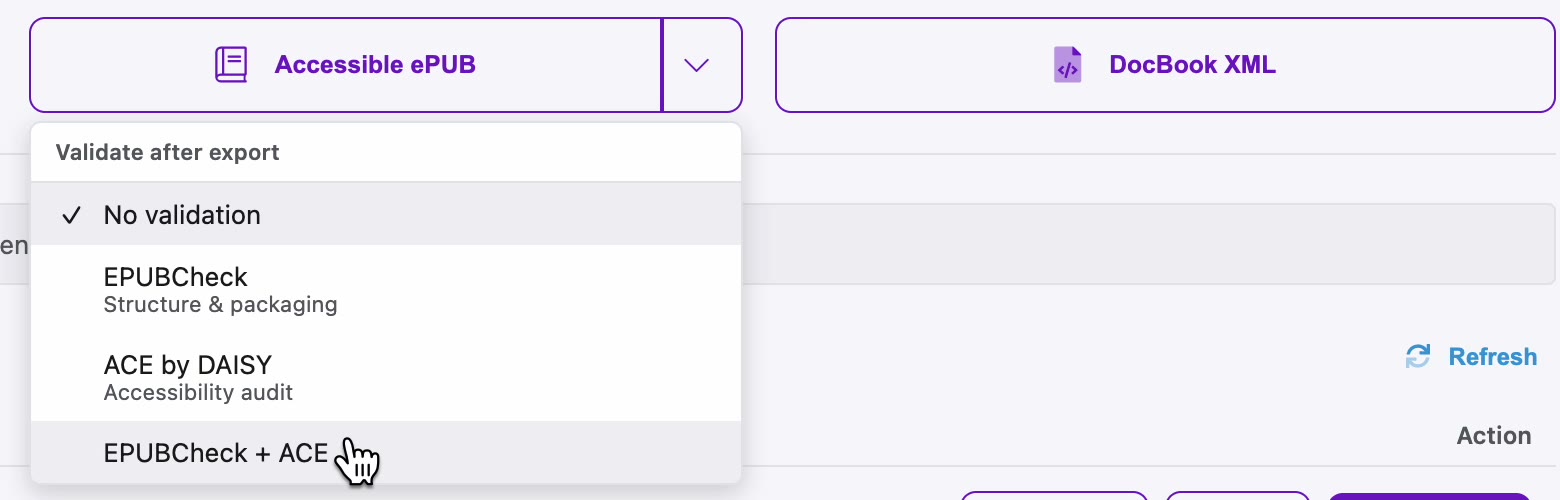
The Accessible ePUB button now shows which checks are selected, for example + Both.
- Click Accessible ePUB.
Check the section structure
PDFxt opens the Section Structure Preview (ePub). It lists every section the ePUB will contain, based on your chapters, with the pages each one covers.
- Scroll through the sections and check that each chapter starts and ends where it should.
- Look for a warning at the top, such as 2 pages not assigned to any chapter (will lead to ePub errors). Pages that don't belong to a chapter cause errors in the ePUB, so fix them before you export.
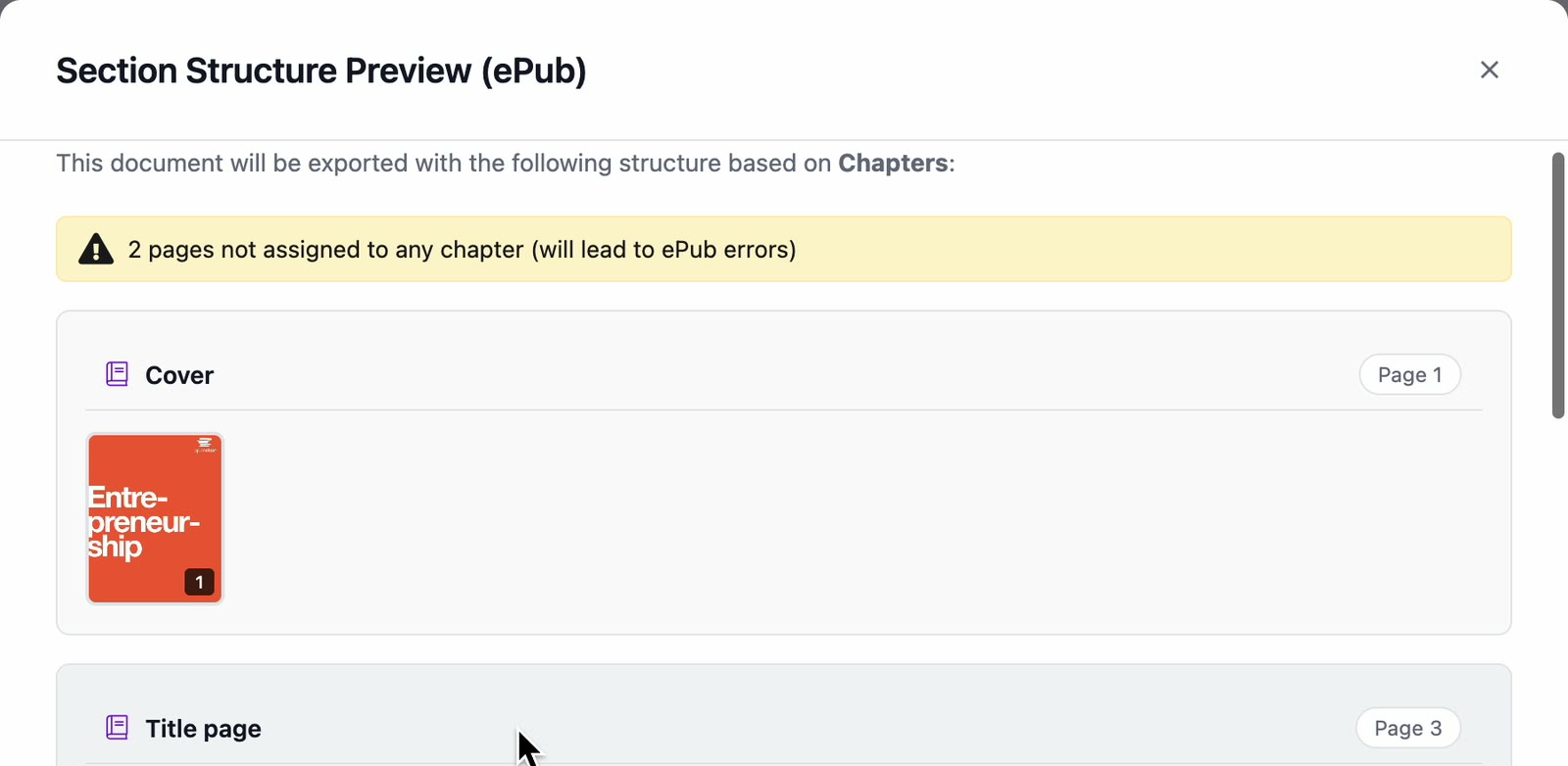
If there's no warning, click Confirm & Export ePub and follow the progress as described under Export the ePUB below.
Fix pages missed in the chapter chunking
- Click Close, then click Return to document at the top right of the page.
- Open the Chapters panel in the left sidebar. It shows the same warning above the chapter list.
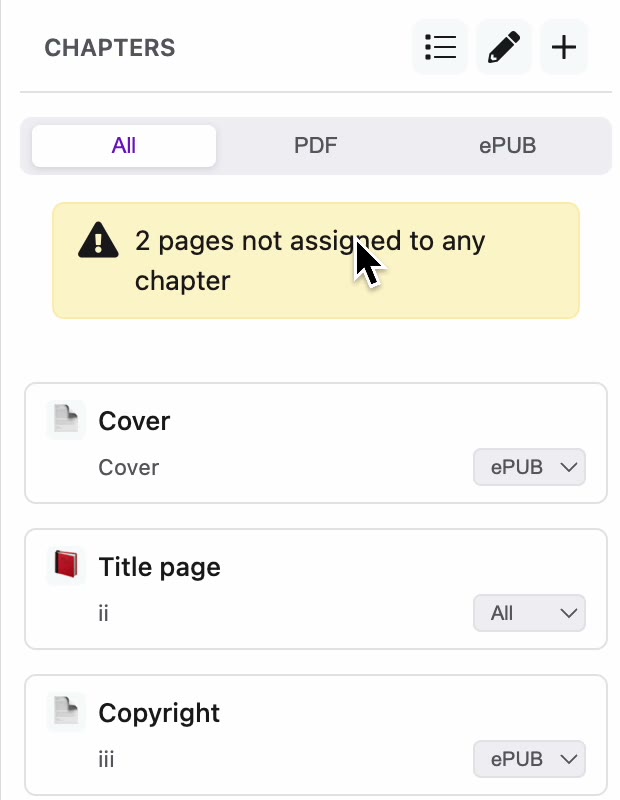
- Click the pencil icon, Bulk Edit (CSV), at the top of the panel. The Bulk Edit Chapters dialog lists every chapter on its own line, as the chapter title followed by its start page.
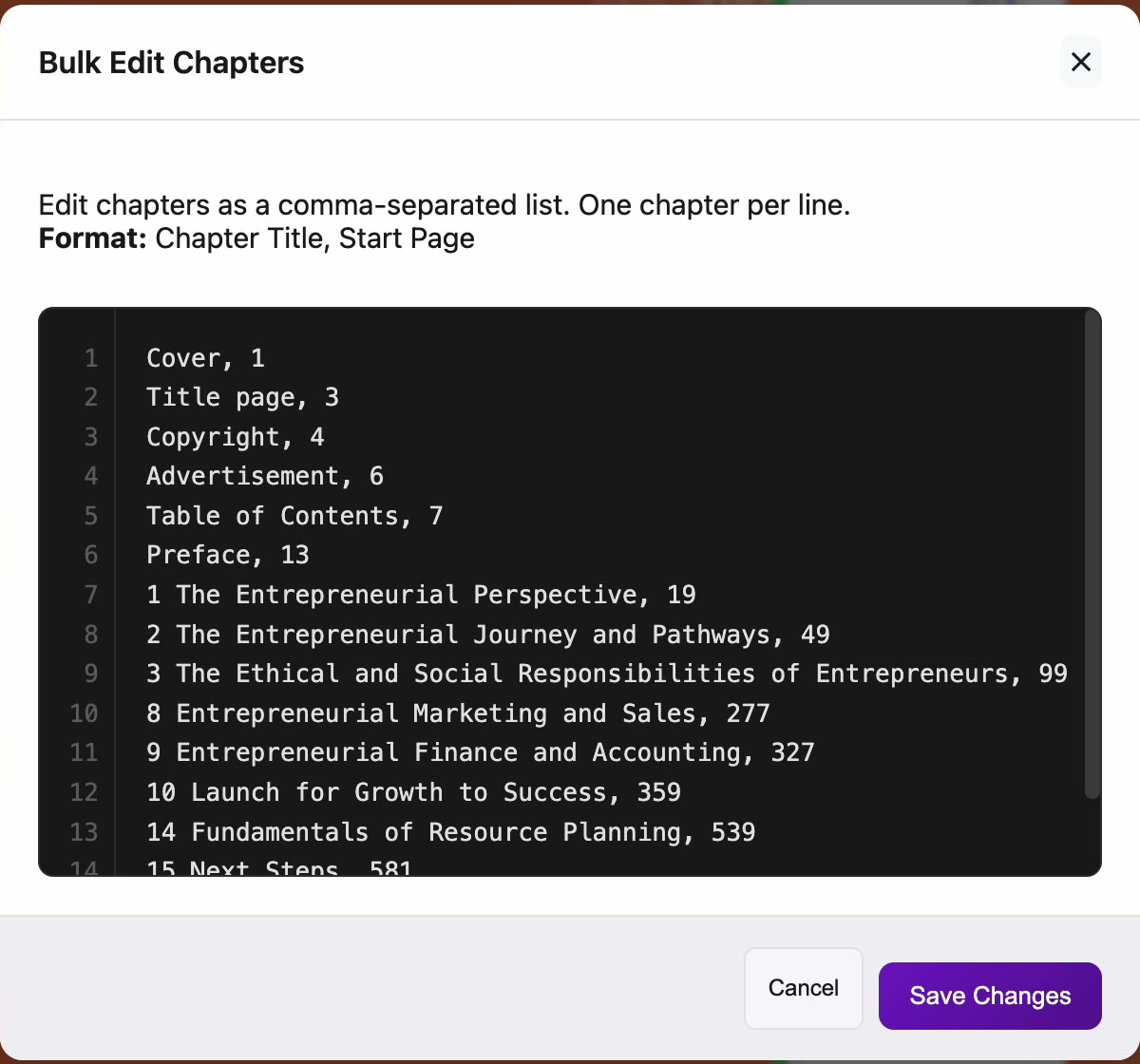
- Check the titles and start pages, and correct any that are wrong.
- Click Save Changes.
A Chapters updated successfully message appears, and the warning disappears from the Chapters panel once every page belongs to a chapter.
For more on chapters, see Build the table of contents and chapters.
Export the ePUB
- Open Export / download again and click Accessible ePUB.
- Check the Section Structure Preview (ePub) again. When it has no warning, click Confirm & Export ePub.
The export starts, and a new version appears at the top of Export History with a progress bar. A message confirms that validation will run when the export completes.

The export can take several minutes for a large title.
View or run the export checks
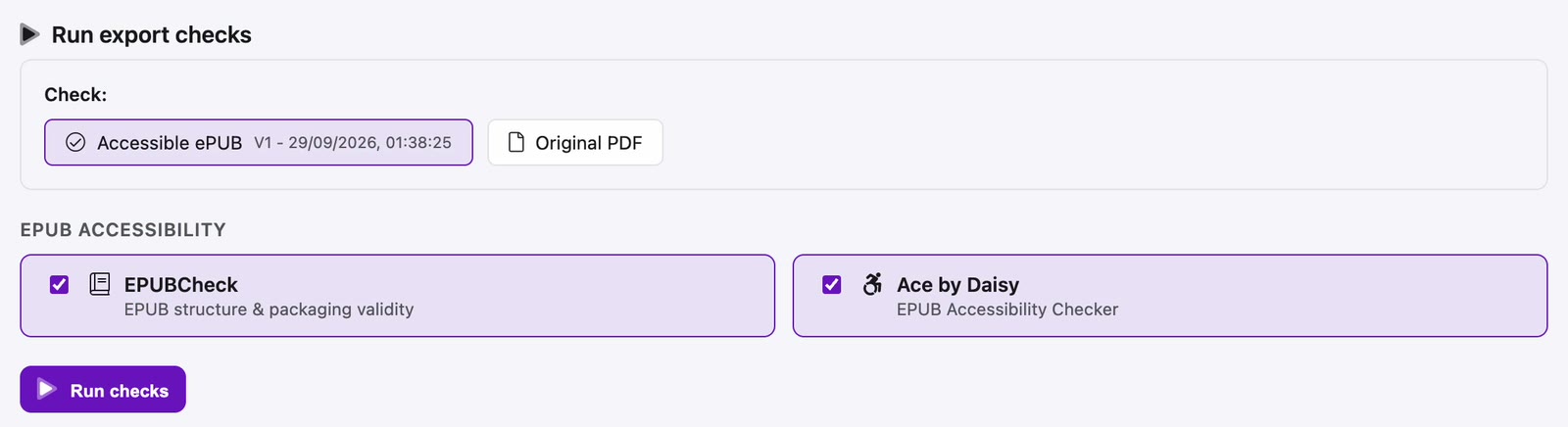
Open the Export checks tab to run checks yourself or to see the results of earlier ones.
- Under Run export checks, choose what to check, such as an Accessible ePUB version, select EPUBCheck, Ace by Daisy or both, and click Run checks.
- Under Check history, click a past check to open its report.
Check it worked
When the export finishes, the ePUB downloads automatically and an Exported file ready for download message appears. If the download doesn't start, click Download in the message, or Download next to the version in Export History.

Automatic downloads are on by default. You can turn them off with Auto-download exports under Settings > My Settings.
Related articles
Watch the video
Export, part 14 of the PDFxt video series.